
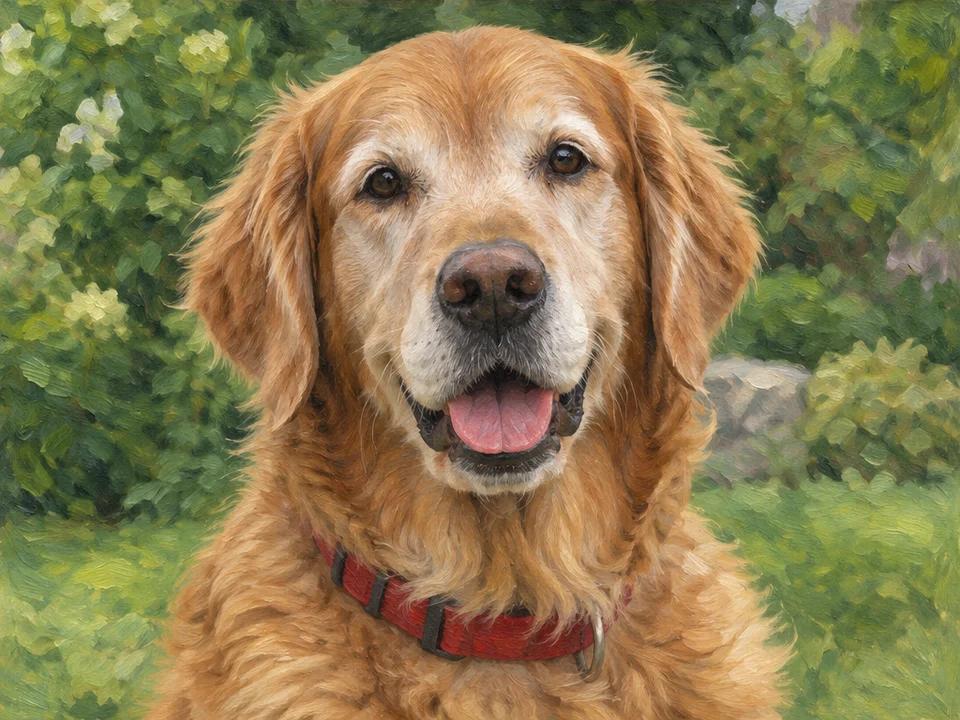
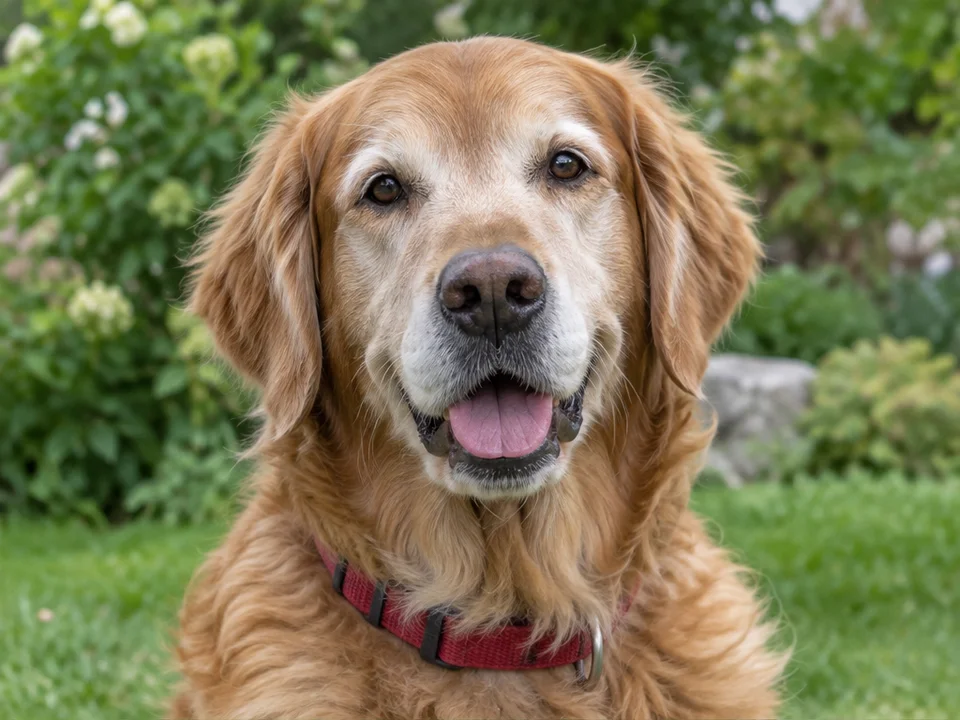
Give portraits, pet photos, and travel memories a digital oil-painted look. Choose from six styles, guide the painted effect and brushwork, and refine the result with your own instructions.
Explore oil painting ideas for pet photos, wedding portraits, family pictures, and travel scenes. Drag the slider to compare the photo and painted look.
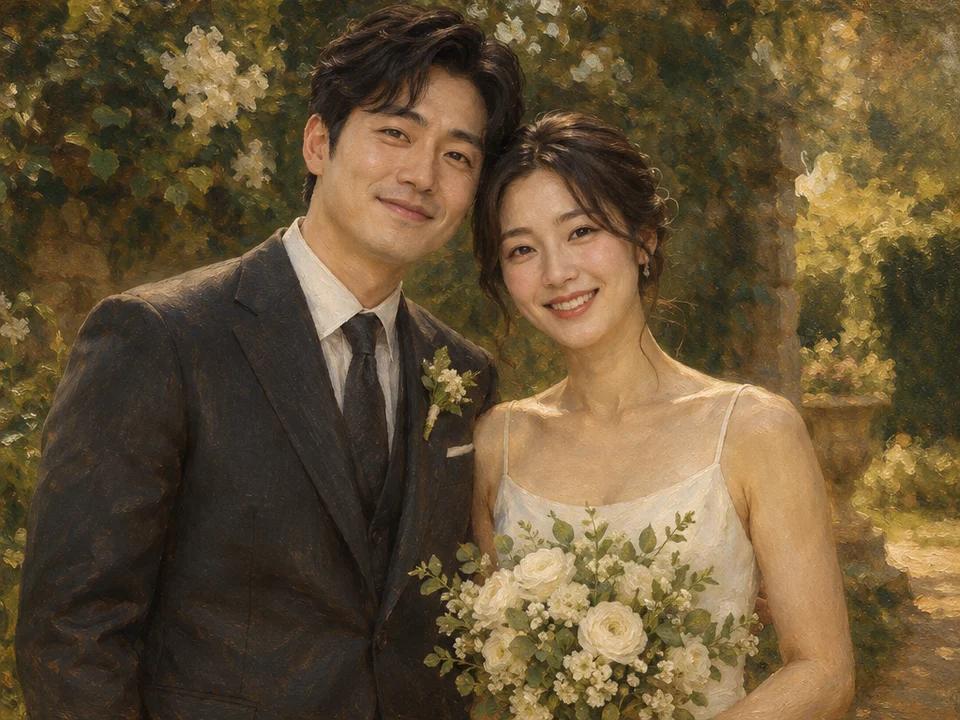
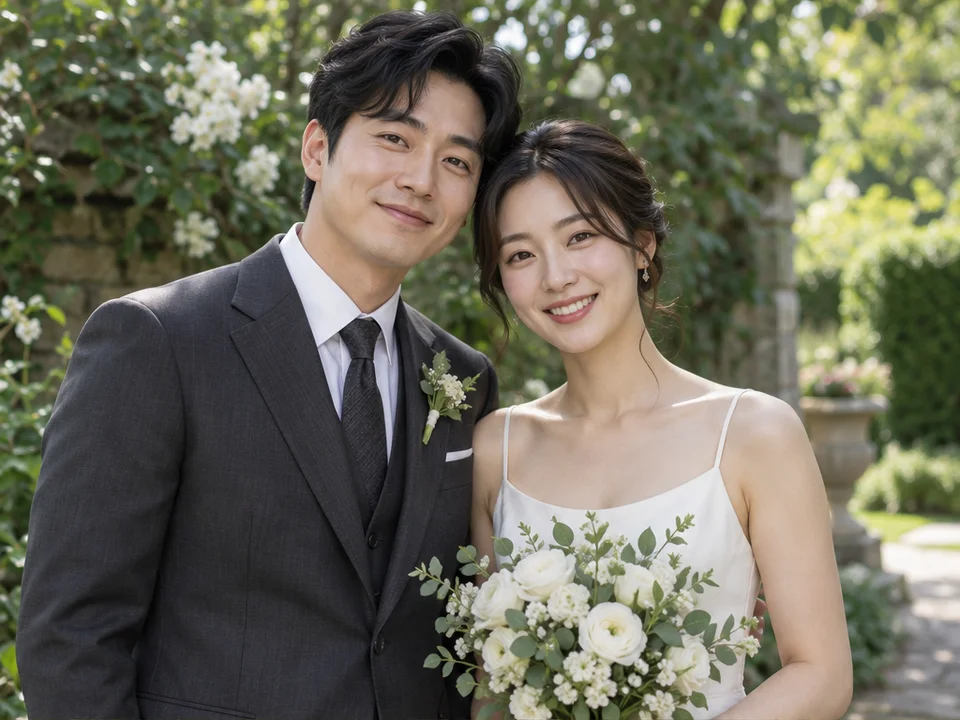
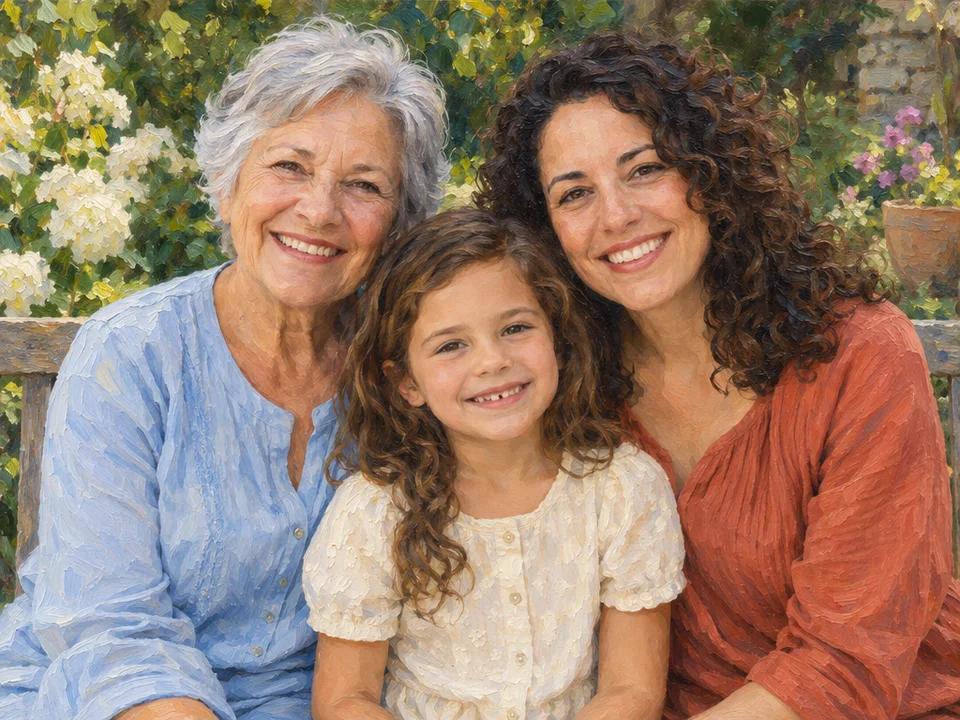
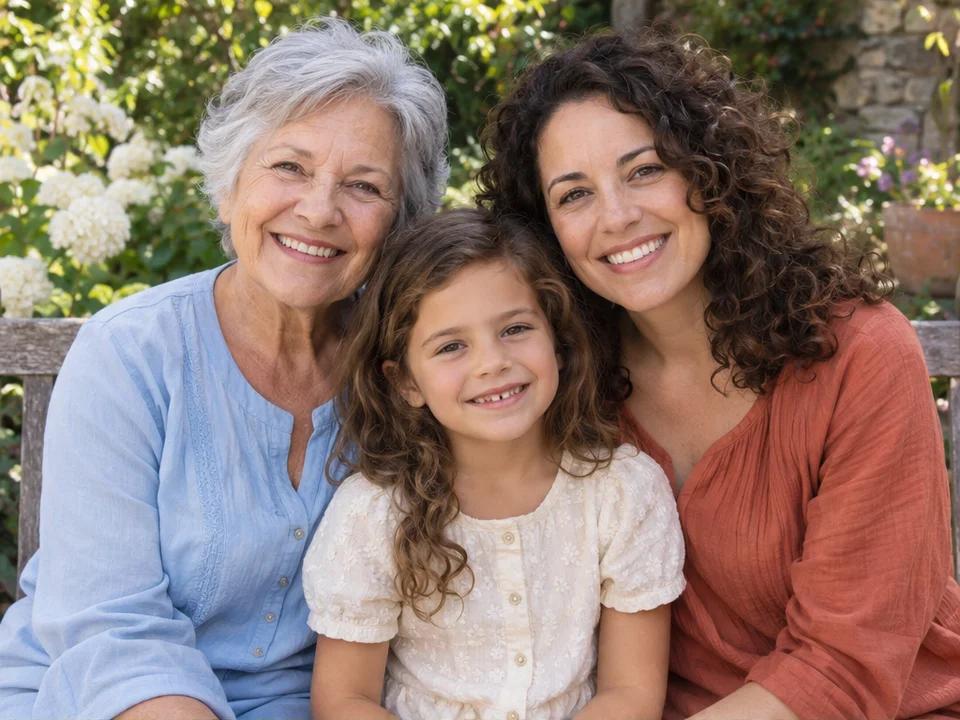
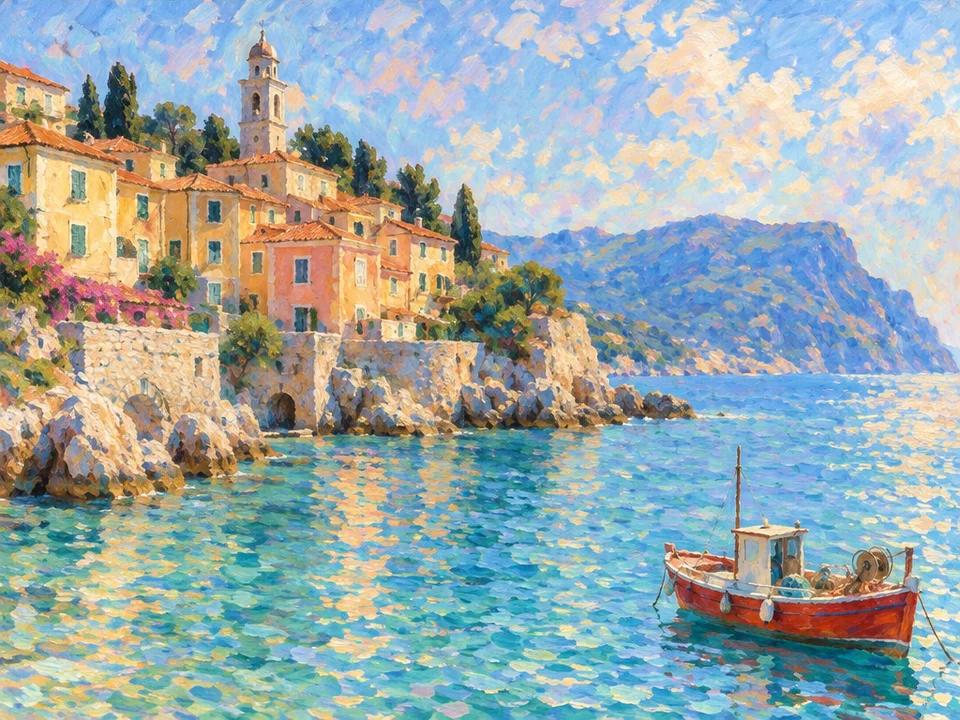
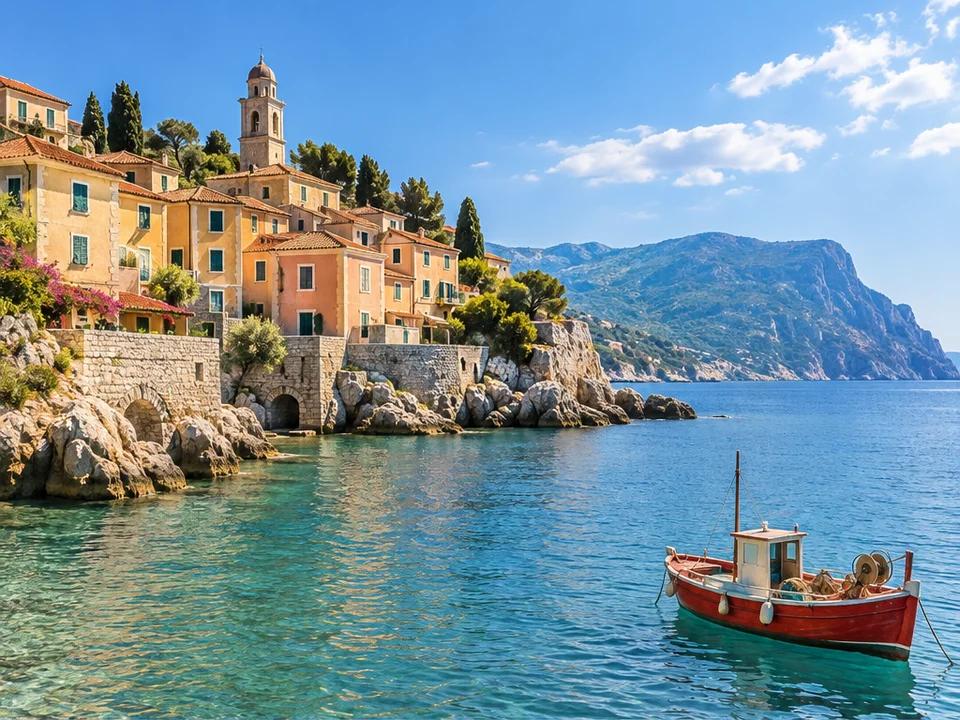
Compare six illustrated oil painting styles to find a starting point for your photo. Previews show the style, not your final result.
Explore the Six StylesLeave the painting effect and brushwork on Auto, or choose your preferred strength and stroke size. These options guide the AI rather than provide exact control.
Edit a generated version with a request such as softer facial brushwork or warmer colors. Each edit uses credits and may change other details.
Compare six style previews. Click a preview to select that style in the tool, then upload your photo and generate.
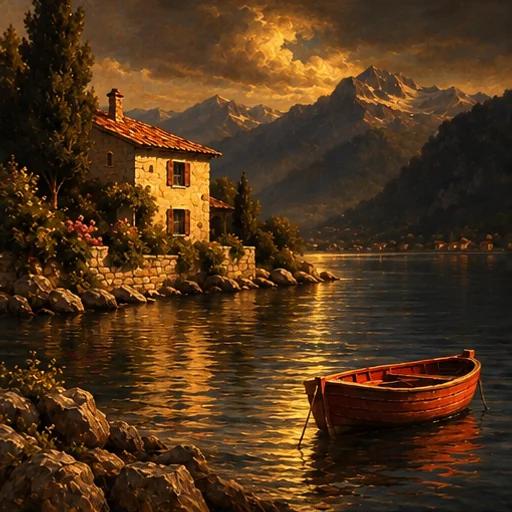
Warm colors, dramatic light, and deep shadows for a traditional painted look.
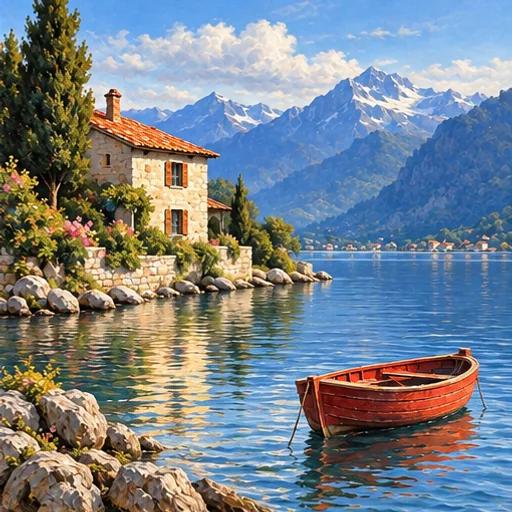
Natural colors, fine brushwork, and detailed forms for a more lifelike look.
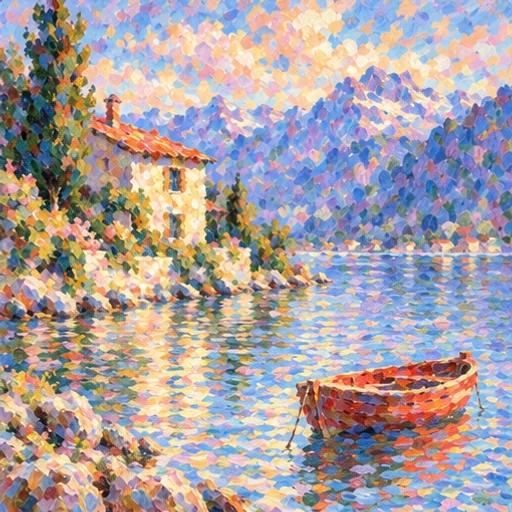
Soft edges, light colors, and loose brushstrokes for an airy painted look.
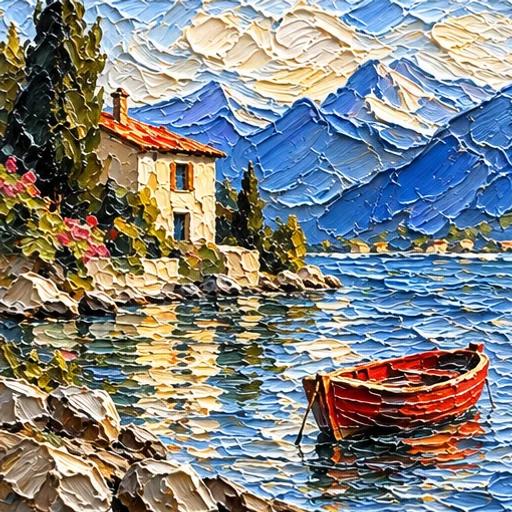
Thick-looking paint and raised-looking strokes for a heavily textured finish.
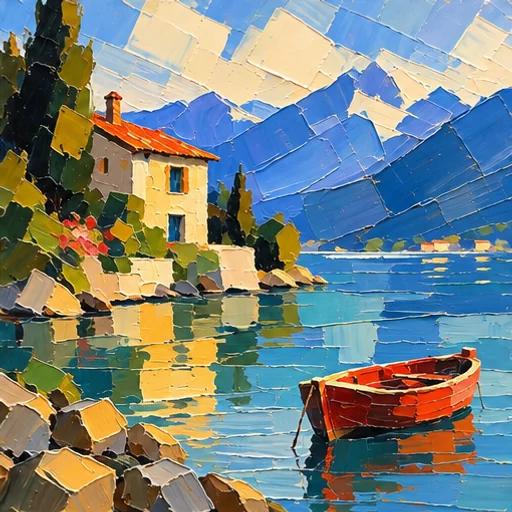
Broad, angular color blocks and sharp edges for a bold, simplified look.
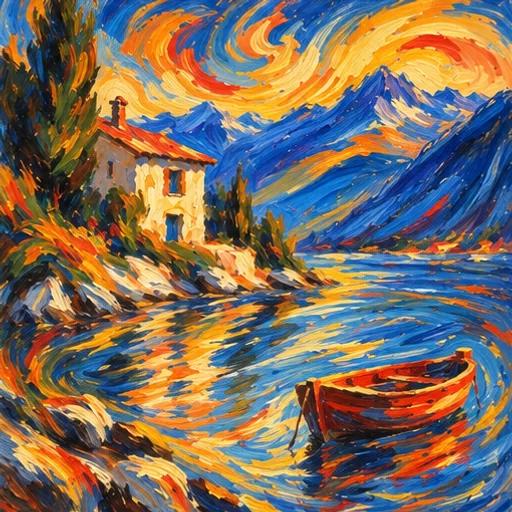
Vivid colors and sweeping strokes for an energetic painted look.
Click Upload Image and choose a clear JPG, PNG, or WebP photo. If you’re not signed in, you’ll be prompted to sign in or create an account first.
Choose one of six oil painting styles. Keep the effect and brushwork on Auto, or adjust them and add instructions if needed. Change the model or output settings if you wish, then check the credit cost and click Generate Oil Painting.
Compare the painting with your photo, then download it as PNG, JPG, or WebP. To refine it, edit that version with another instruction; each edit uses credits. Free accounts download watermarked previews.
Start with 6 free trial credits. Buy more when you need them.
First project
110 credits
GPT at 2K · estimate
Lowest upfront cost
Sign in to continue
Included
Occasional use
440 credits
GPT at 2K · estimate
≈ 25% less / creditvs Starter
Sign in to continue
Included
More room to iterate
1,760 credits
GPT at 2K · estimate
≈ 56% less / creditvs Starter
Sign in to continue
Included
| Model | 1K | 2K | 4K |
|---|---|---|---|
| GPT Image 2 | 3 | 5 | 7 |
| GPT Image 2.5 | 3 | 5 | 7 |
| Nano Banana 2.1 | 2 | 3 | 4 |
Each output is charged separately. Follow-up edits & variations use credits for each new image. Every credit pack supports 1K, 2K & 4K.
This tool uses AI to turn your image into a digital oil painting. It generates a new image from your photo, selected style, and instructions rather than applying a fixed filter. Faces, objects, or composition may change, so compare the result with your original photo.
Go to the oil painting toolYes. Sign up to receive 6 trial credits, then sign in to upload and generate. At 1K, those credits cover up to 3 images with Nano Banana 2.1 or 2 with GPT Image 2 or 2.5, provided you don’t spend them on edits. Free accounts are limited to 1K and download watermarked previews. Check the displayed cost before generating or editing.
Go to the toolAn exact likeness is not guaranteed. AI can change facial features, expressions, and composition. Use a clear photo and describe the details you want to keep in Additional instructions. For example: “Keep the face, expression, and pose close to the original photo.” Check the result against your photo. The same applies to distinctive pet markings and other important details.
Add instructions in the toolTry Strong under Painting effect, or choose broader Brushwork. Impasto adds thick-looking paint texture; Palette Knife emphasizes large color blocks. You can also add an instruction such as “Use visible oil brushstrokes across the subject and background.” A stronger painted effect may simplify details. These settings guide the AI, so compare the result with your photo.
Compare the six oil painting stylesPainting effect sets how strongly you want the photo to be transformed into a painted image. Brushwork sets your preference for fine, medium, or broad strokes. Leave both on Auto to follow your selected style, or adjust them separately. These settings guide the AI; they don’t control the exact size or placement of each stroke.
Adjust the effect and brushworkEdit the generated version with one specific request. If the face looks too photographic beside the background, try: “Use consistent oil-painted brushwork across the face and background. Keep the expression close to the original.” Each edit uses credits and can change other details. Check the displayed cost before submitting, then review the new version.
Return to the toolYes, if the downloaded file meets your print provider’s requirements. Divide its width and height in pixels by the provider’s required pixels per inch (PPI) to estimate print size in inches. For example, 2400 × 3000 pixels gives 8 × 10 inches at 300 PPI. Inspect the image at full size too; pixel count alone doesn’t guarantee sharp detail. Downloads support PNG, JPG, and WebP. Free accounts generate at up to 1K with watermarked downloads; paid accounts can generate at up to 4K. ImgtoImg does not print or ship artwork.
Compare credit packs and resolutionsYour images and prompts are processed through external providers and may be stored for your work history. Some image links are accessible to anyone who has the link. ImgtoImg does not train its own models on your uploads, but external providers have their own data policies. We cannot guarantee that every provider deletes your data after processing or excludes it from model training. Avoid uploading sensitive or confidential material.
Read the Privacy PolicyYes, if your account had valid paid access when the image request was submitted. Commercial use is subject to our Terms and third-party rights. Buying a credit pack later does not automatically authorize earlier images. Contact support if you need confirmation for an earlier image.
Read the commercial-use termsTurn a favorite picture into a digital oil painting. Choose from six styles and start with Auto settings, or add your own instructions.
Go to the Oil Painting ToolSign in to upload and generate. New accounts get 6 trial credits. Free downloads include a watermark.
Images illustrate the options. These choices guide the AI; details may change, so compare the result with your photo.
OpenAI · Flare · 3 credits per image
Your Oil Painting Starts with a Photo
Upload a photo, choose an oil painting direction, and add any details you want to keep.
Your Oil Painting Starts with a Photo
Upload a photo, choose an oil painting direction, and add any details you want to keep.