
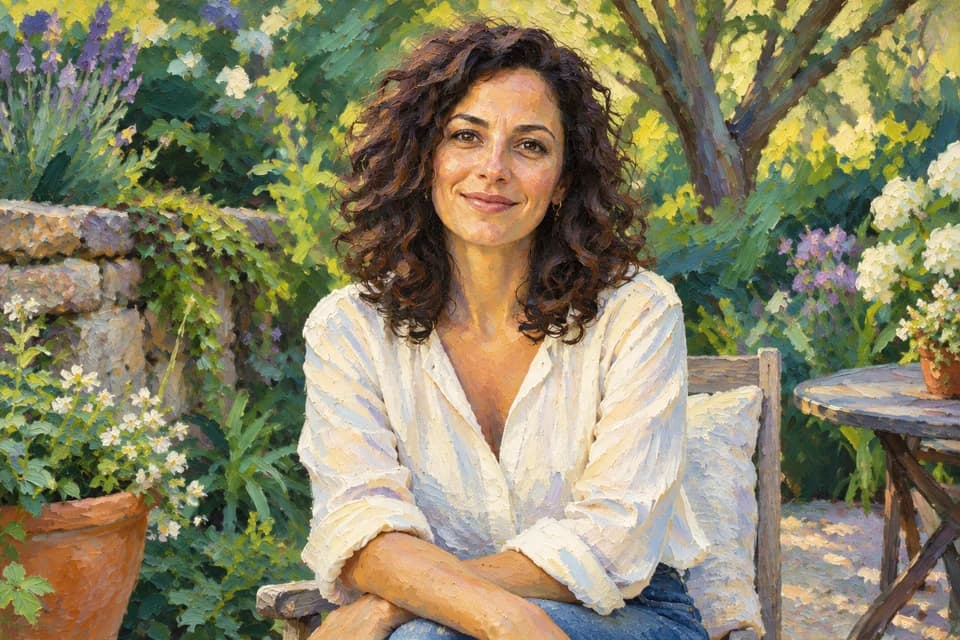
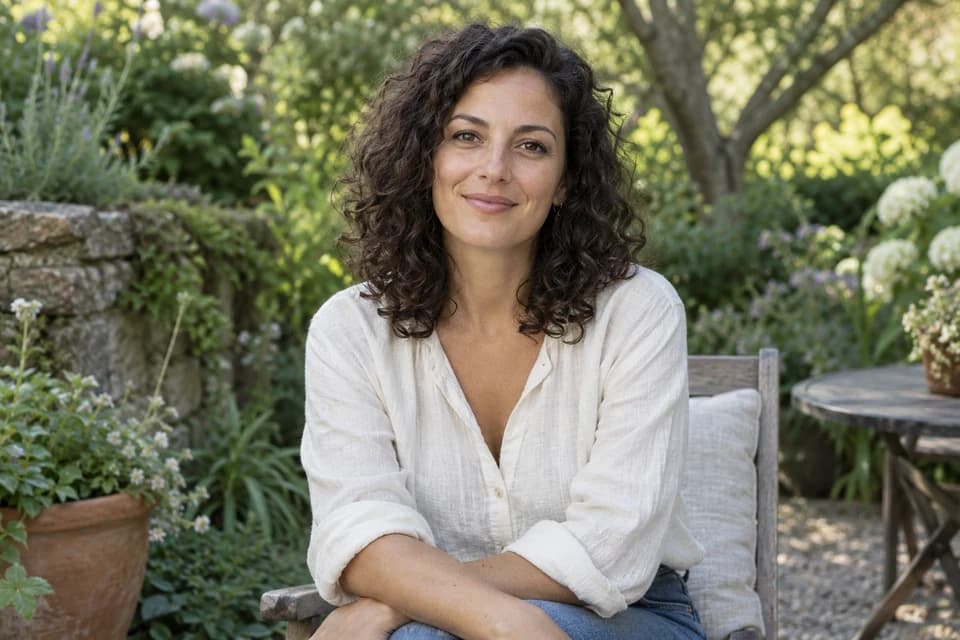
Portrait Photo in Oil Painting Style
Created with ImgtoImg
Convert a portrait photo to an oil painting with broad brushstrokes and rich texture. Compare the face, expression, and pose with the source image.
Use our AI photo to painting converter to transform a portrait, pet photo, or landscape into a digital painting. Choose a preset or describe your own style, then edit and download the result.
Explore the Painting StylesSign in to generate. New accounts get 6 trial credits for 1K generation. Free downloads are watermarked previews. Credits & downloads
Use images you have permission to upload. Your photo and prompt are sent to an external generation service. Privacy Policy
See six real results from ImgtoImg’s Photo to Painting tool, from portraits and pets to landscapes and homes. Drag each slider to compare the uploaded photo with the generated painting.
Created with ImgtoImg
Convert a portrait photo to an oil painting with broad brushstrokes and rich texture. Compare the face, expression, and pose with the source image.
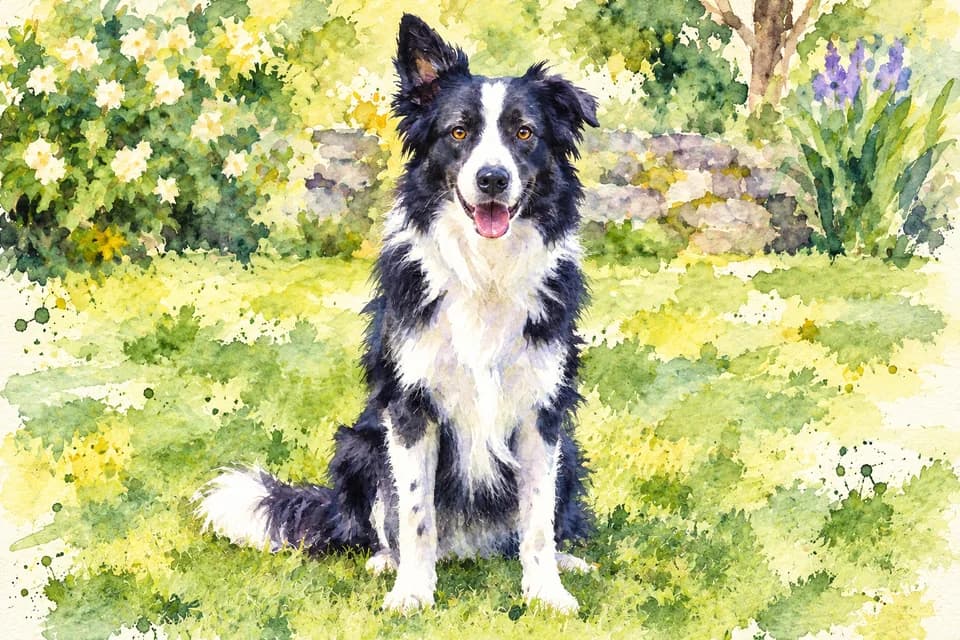
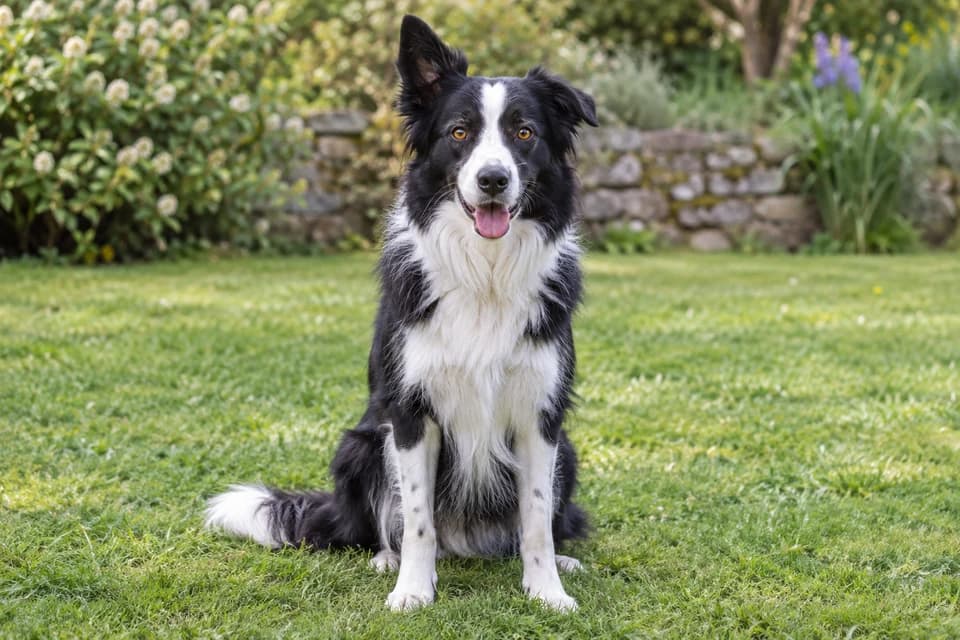
Created with ImgtoImg
Turn a pet photo into a watercolor painting with soft washes of color. Compare the coat markings, ear shapes, and eyes.
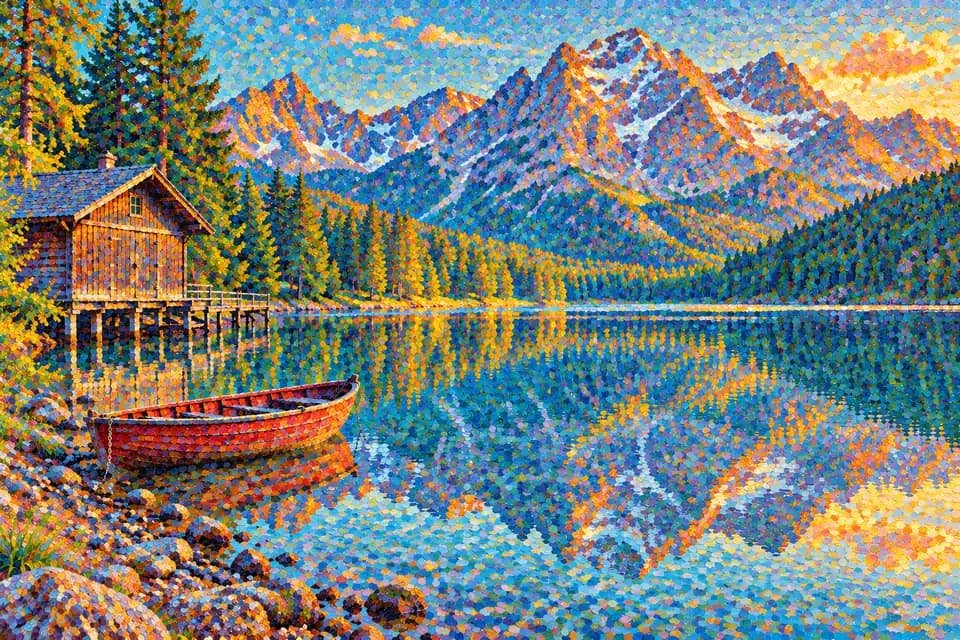
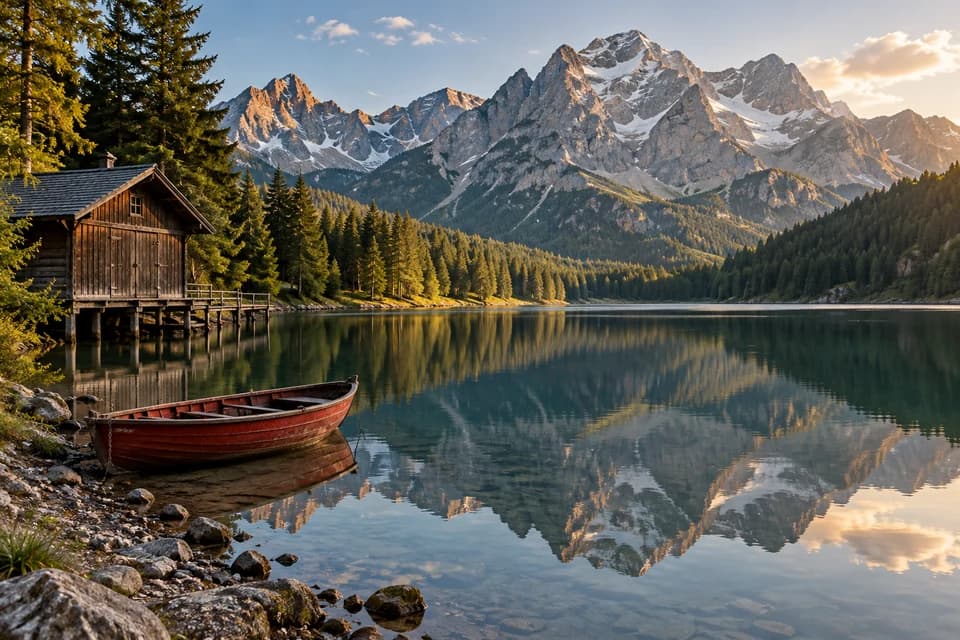
Created with ImgtoImg
Dots of color reinterpret the mountains and reflections. Compare the shoreline, boat, and mountain shapes.
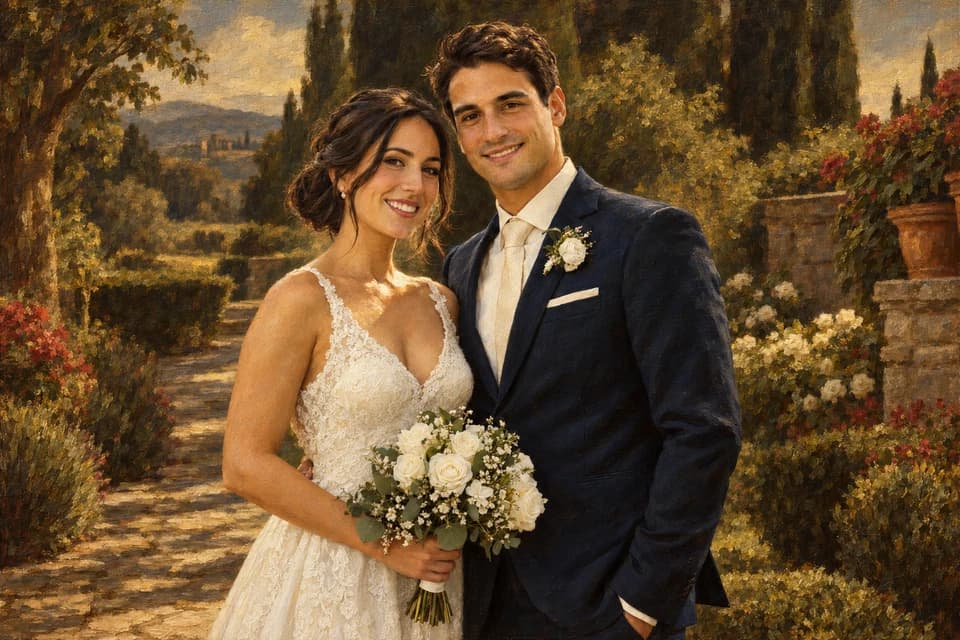
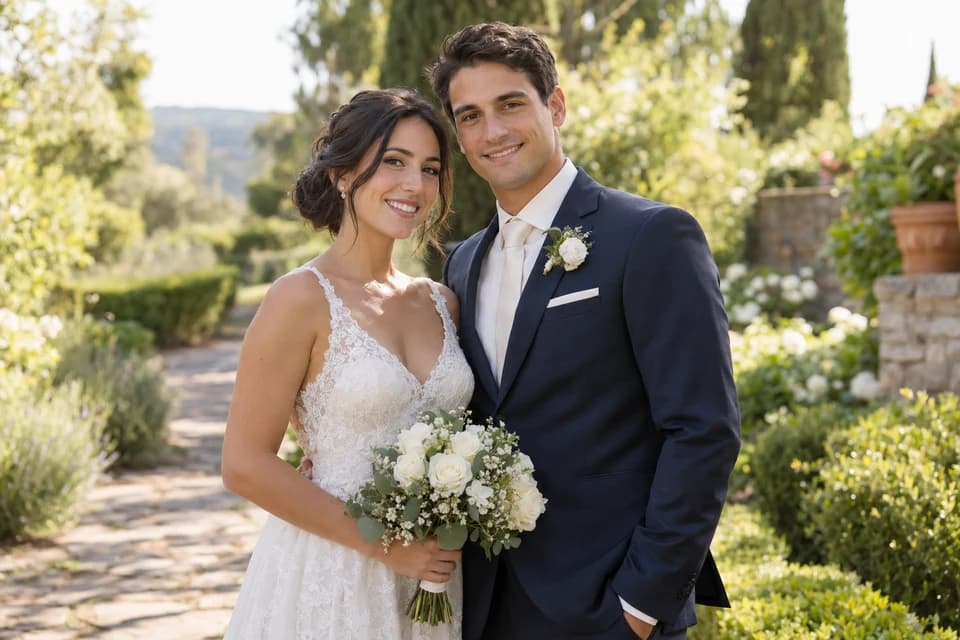
Created with ImgtoImg
Warmer tones and deeper shadows create a classical look. Compare both faces, clothing, and pose.
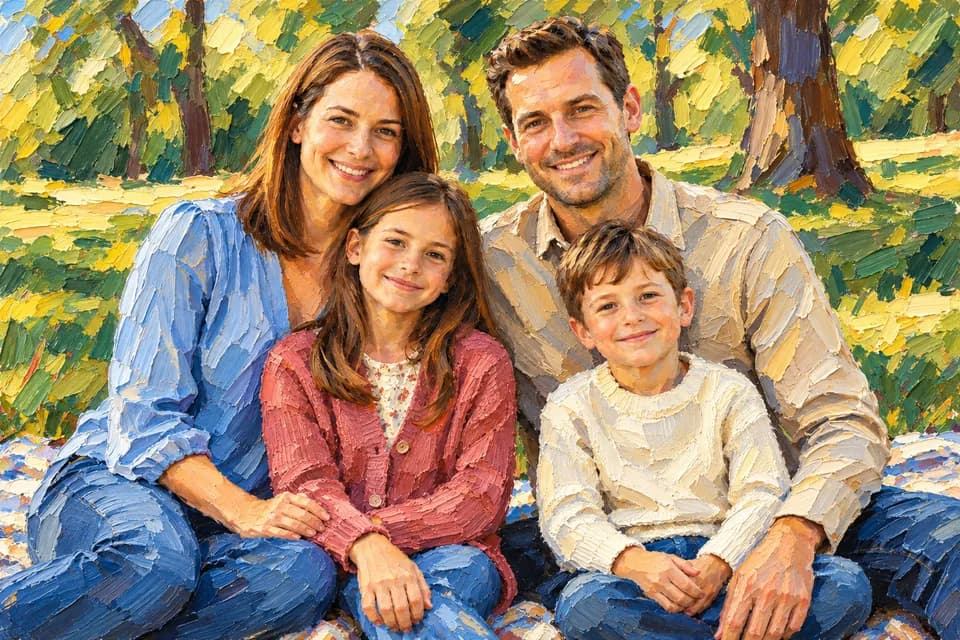
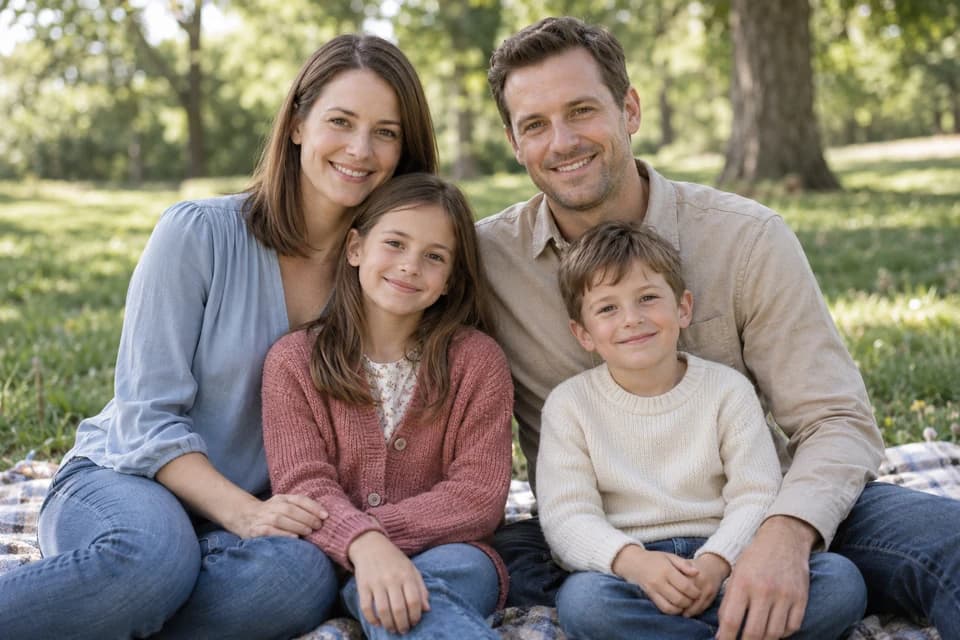
Created with ImgtoImg
Thick paint-like texture and broad color blocks give the portrait a bolder look. Compare each person’s features.
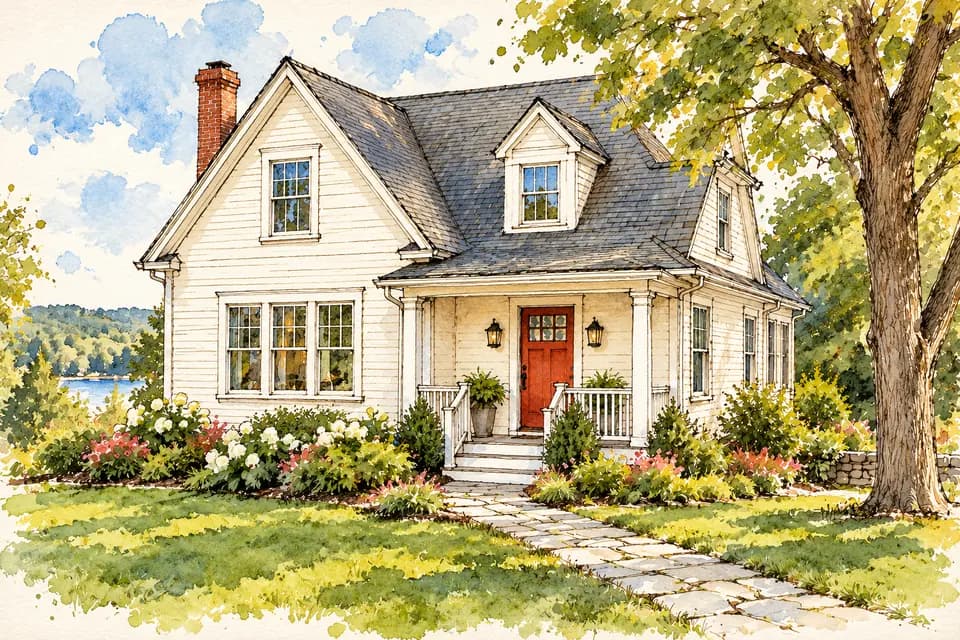
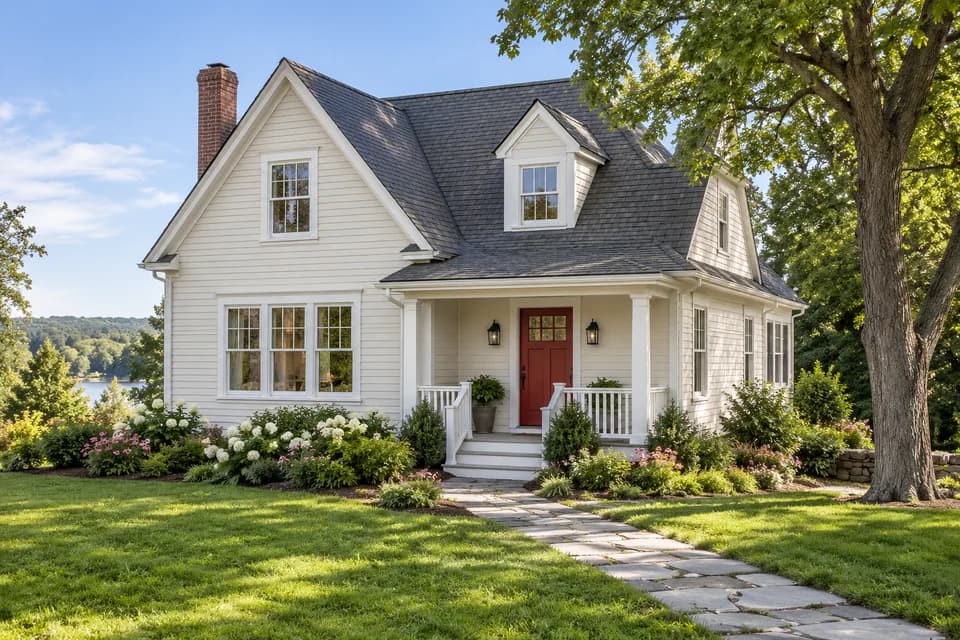
Created with ImgtoImg
Ink-style outlines and light washes define the house. Compare the roofline, windows, and red front door.
Choose from 270+ styles and effects, including oil, watercolor, acrylic, and artist-inspired looks. Select a style to apply it to your photo, or browse the full library for more options.
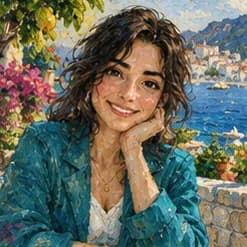
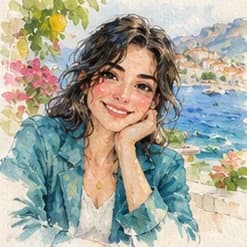
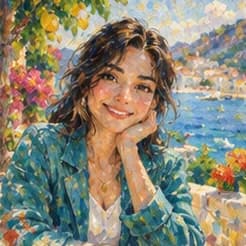
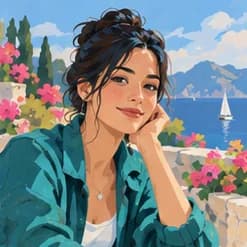
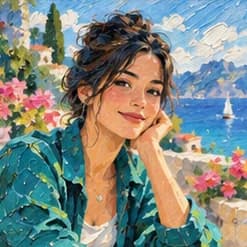
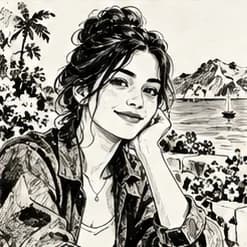
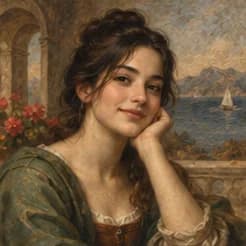
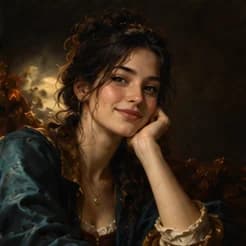
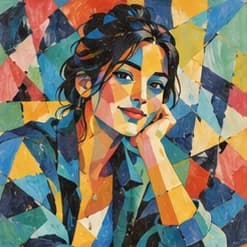
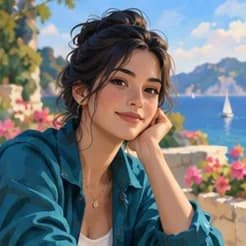
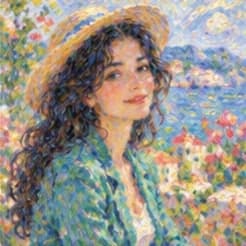
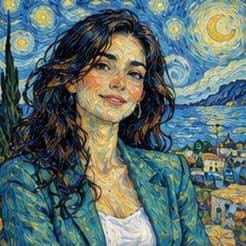
Each preset provides a starting prompt. Add your own details in the tool to guide the result.
Our photo to painting converter lets you customize the style, guide important details, and edit the result.
Start with a preset, then adjust the brushwork, colors, and texture with your own instructions. You can also describe a style from scratch.
Tell the AI which facial features, pet markings, or landmarks to keep. Your photo and instructions guide the result; an exact match is not guaranteed.
Adjust a generated painting with another instruction, or return to an earlier version. Mark an area to guide an edit; the mark is not a precise mask.
Choose a model, resolution, and image count. The tool shows the total credit cost before you generate, including when you request another edit.
Sign in and upload one JPG, PNG, or WebP photo. Choose a clear image with the subject and key details visible.
Select a preset or describe your own style. Add any details you want to keep, then choose the model, aspect ratio, resolution, and number of output images. Review the total credit cost and click Generate Painting.
Check the subject and important details in your painting. If needed, edit the generated version with another instruction. Download the version you prefer.
To make your photo look like a painting, describe the brushwork and texture you want. Start with a clear photo, then check the subject and details before downloading.
Your Photo
Use a photo where faces, pet markings, or building features are easy to see. For group portraits, choose an image where every face is clear.
Photo tip: A closer family photo gives you more visible facial detail to work with.
Painting Style
Name a medium and the look you want, such as thick oil strokes or soft watercolor washes. If you selected a preset, add details that refine it rather than contradict it.
Example instruction: “Use thicker brushstrokes and a warm color palette.”
Key Details
Specify the expression, markings, or shapes that identify your subject. Check those details in the painting; preservation instructions do not guarantee an exact match.
Example instruction: “Keep the dog’s white forehead marking, amber eyes, and seated pose.”
Editing
If the painting is close to what you want, edit that version with one specific request. Review what changed before making another edit, and return to an earlier version if you prefer it.
Example instruction: “Use looser brushstrokes in the background. Keep the person’s expression and pose.”
Explore ideas for a painted profile picture, a digital keepsake, or a painting of a favorite place.
Turn a personal, family, or wedding photo into a painting-style image for a profile picture or digital keepsake. Explore oil, watercolor, or a classical portrait style.
Ideas: A painted avatar, an anniversary image, or a family keepsake.
Try Your Photo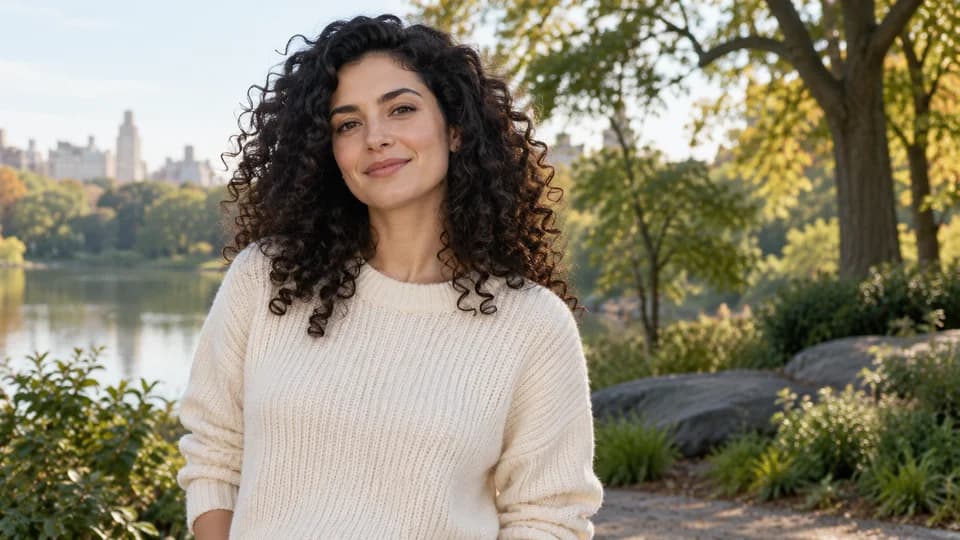
Portrait photo inspiration
Create a painting-style portrait from a dog or cat photo. Try oil or watercolor for a digital keepsake, a pet profile picture, or an image to remember a companion.
Ideas: A pet portrait, a birthday image, or a memorial keepsake.
Try Your Photo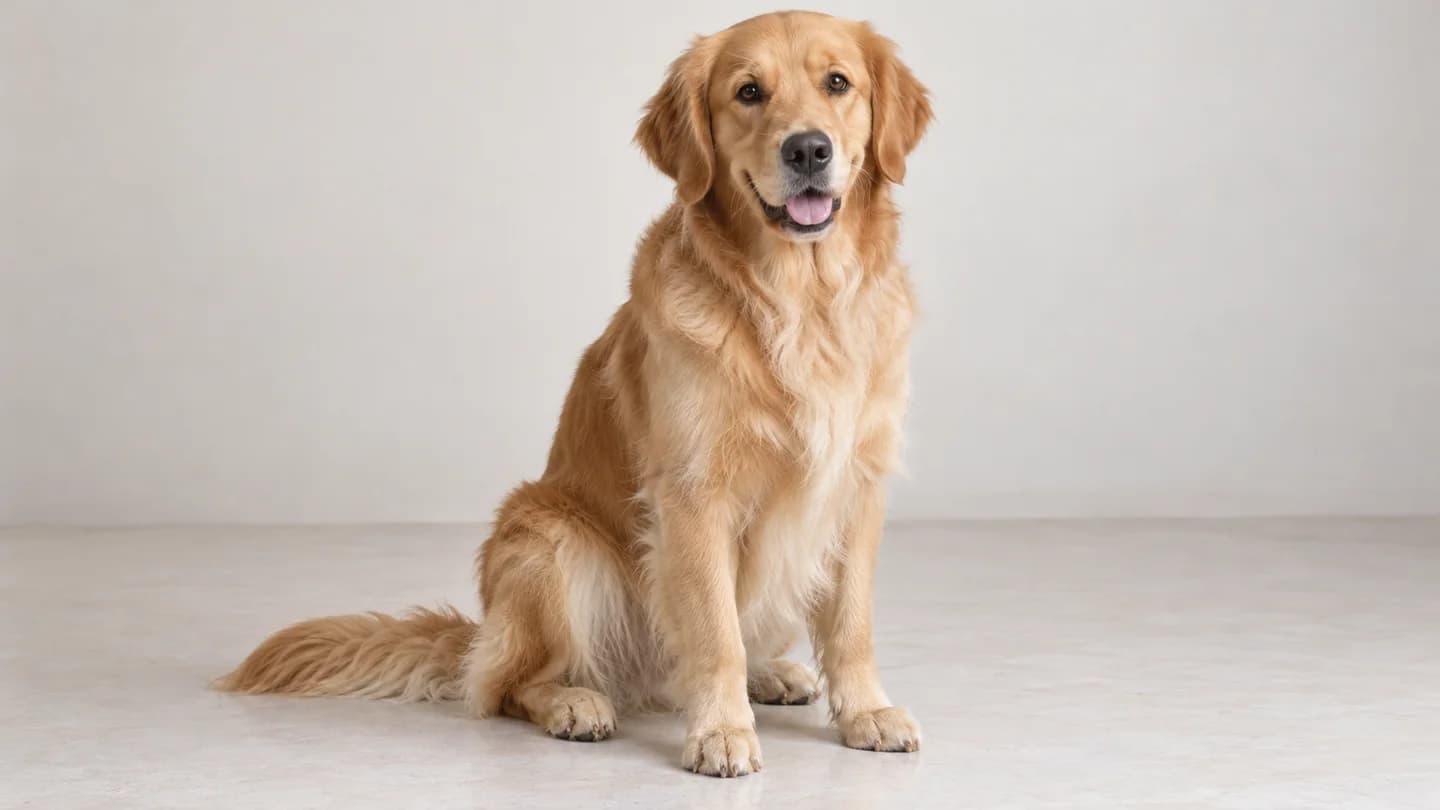
Pet photo inspiration
Reimagine a travel photo, landscape, or home in a painting style. Explore watercolor, impressionist brushwork, or ink outlines for a digital reminder of a place that matters to you.
Ideas: A favorite trip, a childhood home, or a local view.
Try Your Photo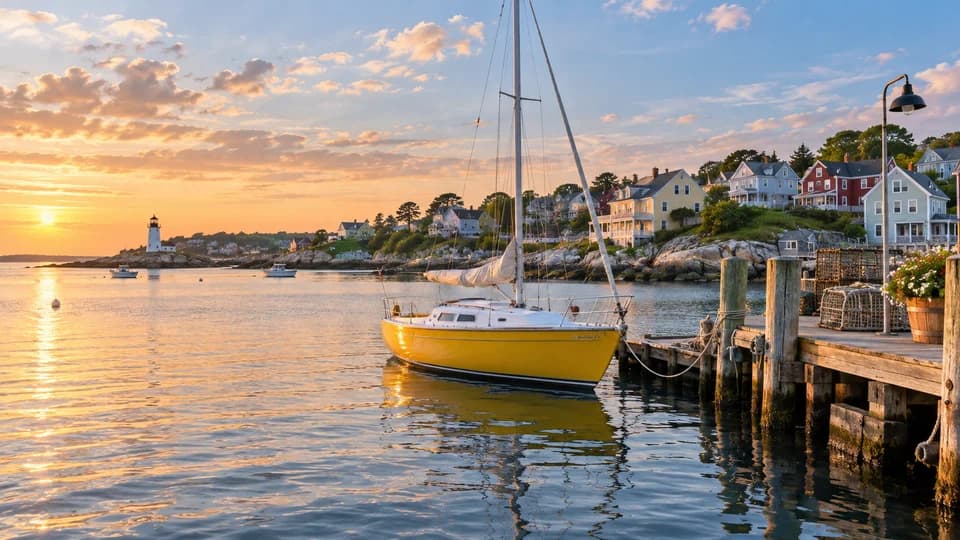
Landscape photo inspiration
Start with 6 free sign-up credits for 1K generation. Choose a one-time credit pack when you need more. Purchased credits never expire.
First project
110 credits
GPT at 2K · estimate
Lowest upfront cost
Occasional use
440 credits
GPT at 2K · estimate
≈ 25% less / creditvs Starter
More room to iterate
1,760 credits
GPT at 2K · estimate
≈ 56% less / creditvs Starter
Sign in to purchase a credit pack.
| Model | 1K | 2K | 4K |
|---|---|---|---|
| GPT Image 2 | 3 | 5 | 7 |
| GPT Image 2.5 | 3 | 5 | 7 |
| Nano Banana 2.1 | 2 | 3 | 4 |
Each output is charged separately. Follow-up edits & variations use credits for each new image. Every credit pack supports 1K, 2K & 4K.
Generate 1–4 images at a time. Review the total credit cost in the tool before generating or requesting an edit. Free accounts generate at 1K; paid accounts can generate up to 4K.
Download PNG, JPG, or WebP. Free downloads are watermarked previews, up to 768 pixels on the longest side. Paid accounts can download the original image without the ImgtoImg preview watermark.
Answers about source photos, likeness, downloads, printing, and using your artwork.
Upload a photo, choose a painting style, and generate your image. You can then edit the result and download the version you prefer. Follow the three steps above for the full process.
New accounts receive 6 trial credits. Sign in to upload and generate; free accounts generate at 1K. This is a limited trial, not unlimited free generation. Check the cost in the tool before generating.
Upload one JPG, PNG, or WebP photo. Convert other formats before uploading. Choose a photo where the subject and important details are clearly visible.
No. The thumbnails illustrate a visual style, and each preset supplies a starting prompt. The result depends on your photo, selected model, and instructions. Add your own details or continue editing the generated image to refine it.
An exact match is not guaranteed. AI can change facial features, small details, and composition. Describe what you want to keep, then check those details against your original photo before using the painting.
A broad style request can leave the painted look open to interpretation. Specify the medium, brushwork, and texture, and check that your added instructions do not conflict with the preset. See the painting tips for example instructions. A more specific request still does not guarantee a particular result.
Yes. Edit the generated version with a follow-up instruction to change its style or details. You can mark an area to guide the edit, but the mark is not a precise mask and changes can extend beyond it.
No subscription is required. The cost depends on the model, resolution, and number of images. Each output and follow-up edit uses credits; the tool shows the total before you generate. Buy a one-time credit pack when you need more. Purchased credits do not expire.
Download PNG, JPG, or WebP. Free accounts receive watermarked previews up to 768 pixels on the longest side, even when generation is at 1K. Paid accounts can download the original generated image without the ImgtoImg preview watermark.
Yes, if the downloaded file meets your printer’s requirements. Check its pixel dimensions against your intended print size and inspect the image at full size. Selecting 4K does not guarantee suitability for every print size. Arrange printing yourself; ImgtoImg does not print or ship physical paintings.
Your reference image, prompt, and settings are sent to an external generation service. See the Privacy Policy for data-handling information. If you need specific assurances about confidential images, contact us before uploading.
Images generated while your account has valid paid access may be used commercially, including those made using reward credits during that paid access. A later purchase does not automatically authorize earlier free-account images. Eligibility is explained in the Terms of Service. You must also have the necessary rights to the source photo and any protected content in the result. This permission does not guarantee exclusive copyright or that the result is free of third-party rights.
Generation fails: Check the task status before starting again. Credits charged for a failed generation task are restored.Download fails: Retry the download or open the completed result in My Work. A download problem is not automatically a generation failure. Generating a replacement uses new credits.You dislike the result: A successfully generated image you dislike does not automatically qualify for a cash refund on that basis; your statutory rights still apply. A purchase may be eligible within 7 days only if it meets all conditions in the Refund Policy. Under the voluntary refund rule, no generation or edit requested after that purchase may have completed successfully, regardless of the credits used. Duplicate or unauthorized charges and statutory remedies are reviewed separately. For unresolved issues, contact support.
Have another question? Contact us.
Start with Your Photo
Choose a painting style or describe the look you want. Review your result, make further edits, and download the version you prefer.
2. Choose a style
Oil Painting
These instructions are added to your selected style. Changing styles keeps your details.
OpenAI · Flare · 3 credits per image
Your painting starts with a photo
Upload your photo, choose a style, and generate. Your result will appear here for review, further editing, and download.
Your painting starts with a photo
Upload your photo, choose a style, and generate. Your result will appear here for review, further editing, and download.