AI Photo to Sketch

Photo to Sketch: Turn an Image into a Pencil Drawing

Upload one photo and reinterpret it as a pencil, graphite, charcoal, ink, line, colored-pencil, or cross-hatched sketch.

Photo to Sketch Examples

Drag each comparison to inspect how a portrait, a pet, and a place translate into three different sketch directions.

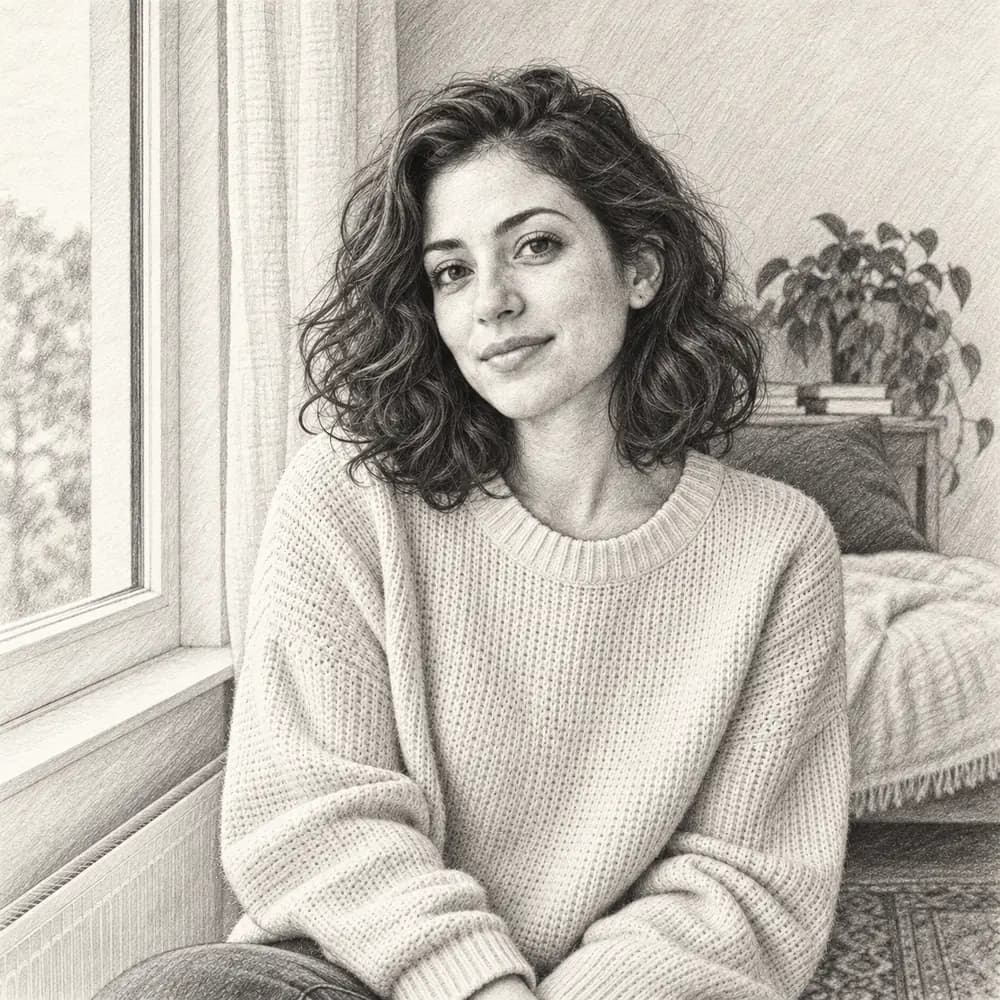
Graphite pencil interpretation of the window-lit portrait
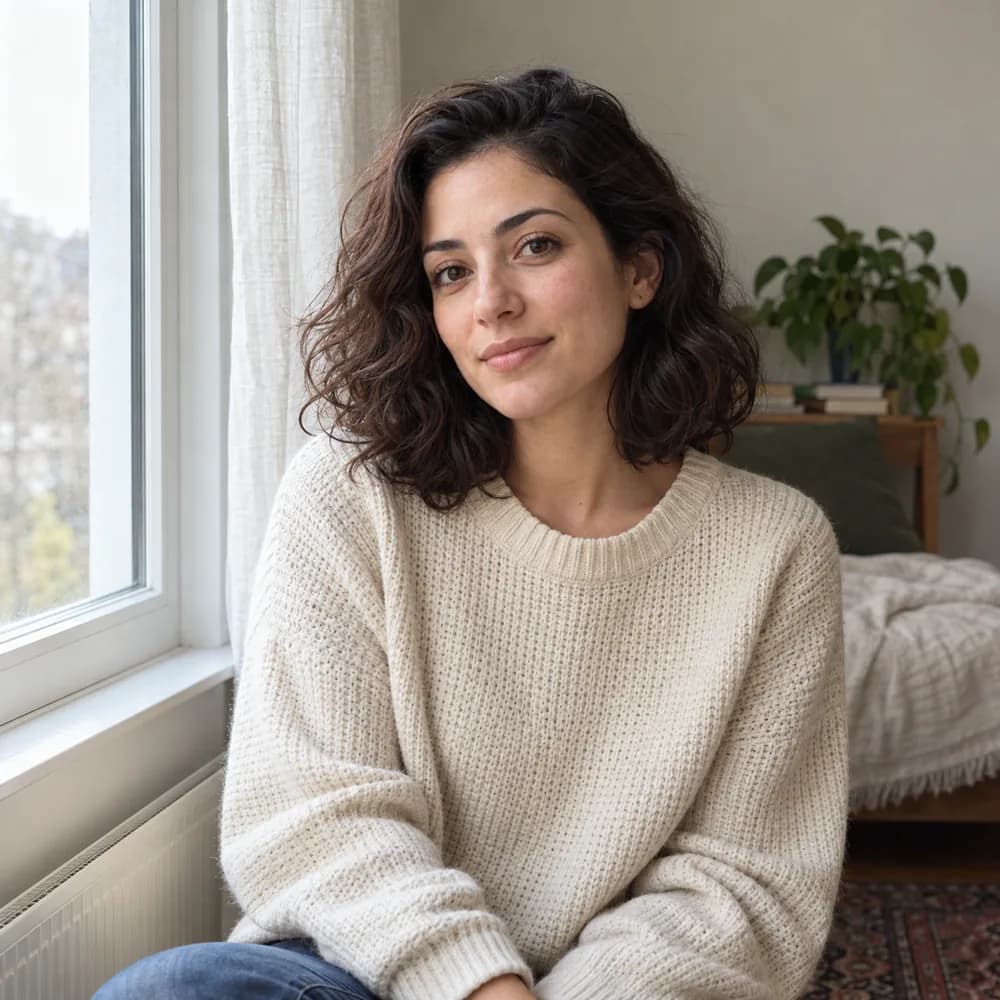
Window-lit portrait of a woman in a cream sweater
PhotoGraphite

Portrait in Graphite

Graphite shading and cross-hatching reinterpret the face, hair, sweater, and window light from the source portrait.
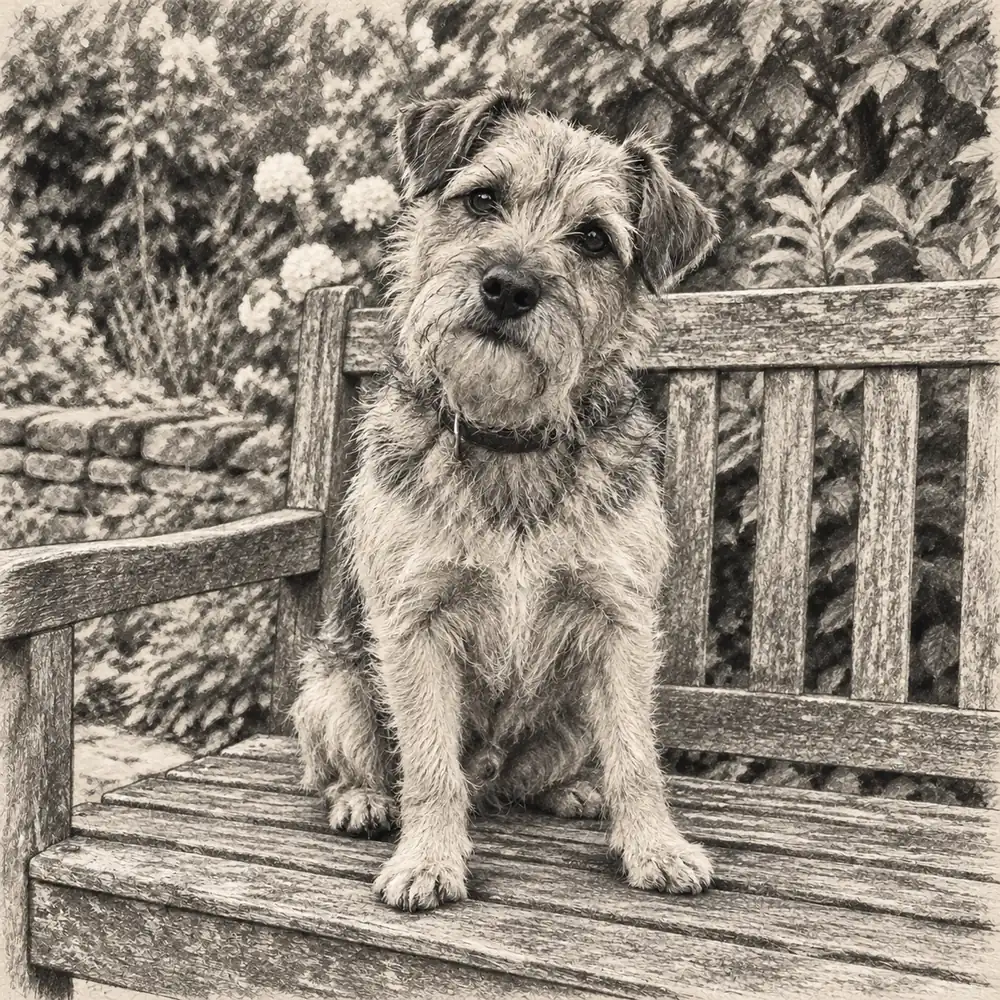
Charcoal and soft-pencil interpretation of the terrier photograph
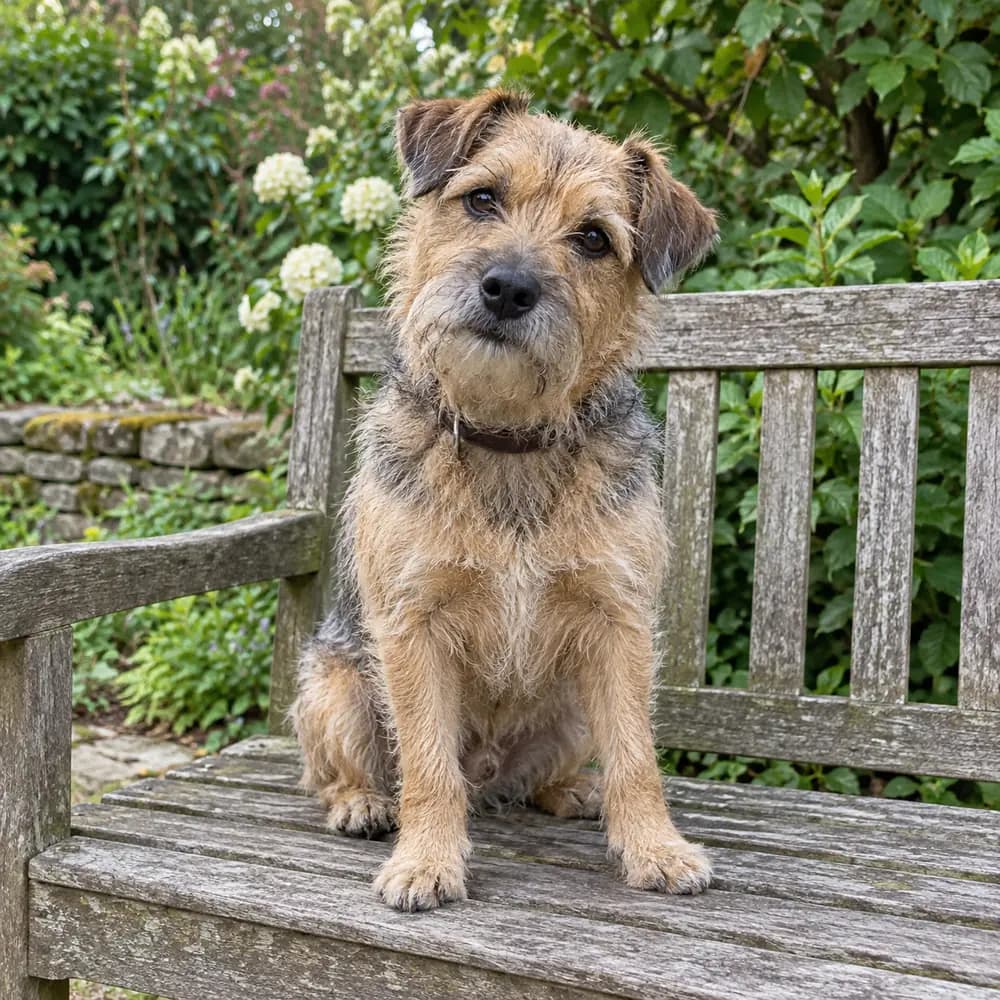
Scruffy terrier sitting on a garden bench
PhotoCharcoal

Pet in Charcoal and Soft Pencil

Loose charcoal tones and softer pencil marks translate the terrier's fur, seated pose, bench, and garden setting.
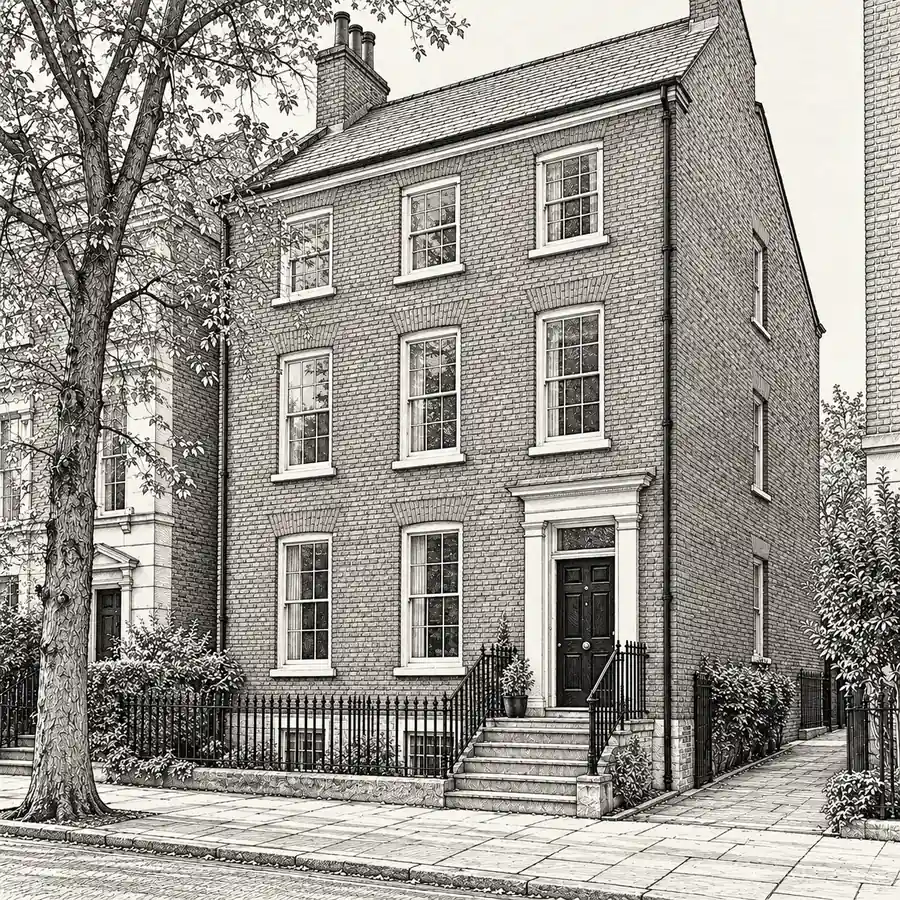
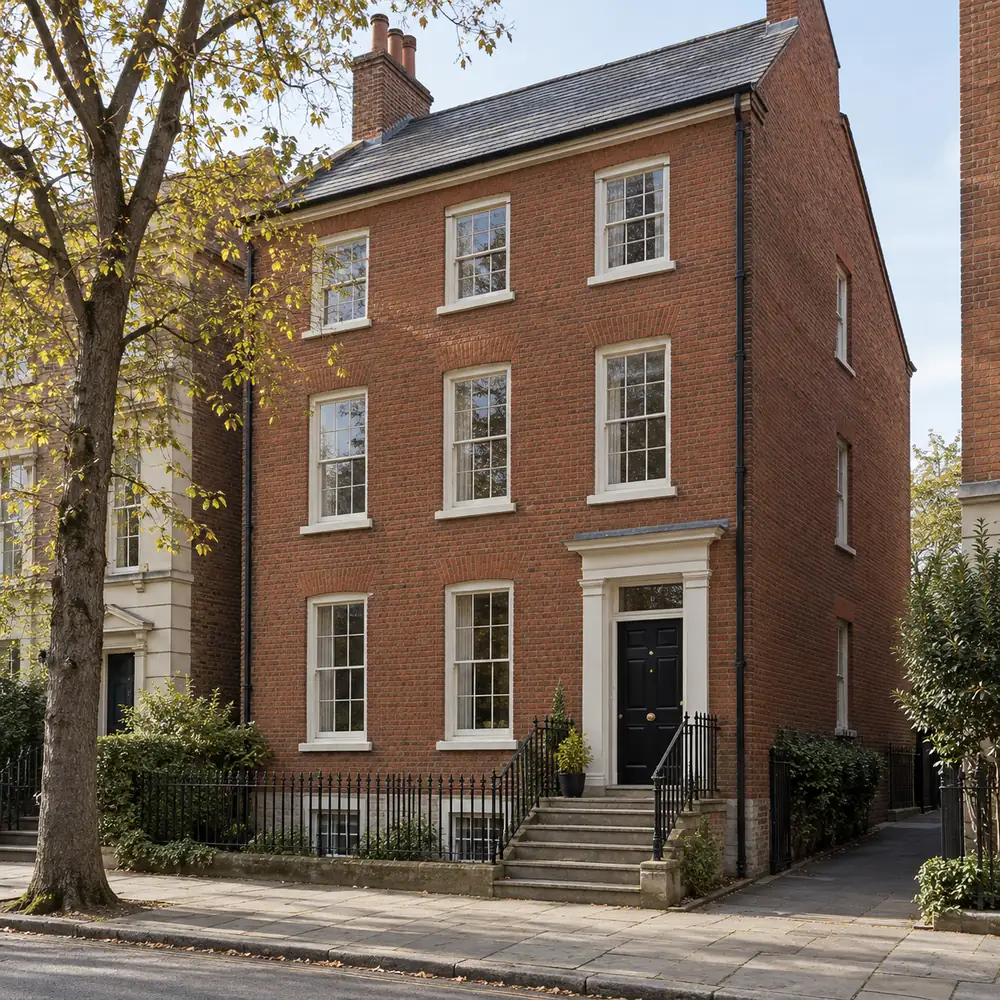
Ink line sketch of the townhouse with cross-hatched shadows
Red-brick townhouse photographed from a three-quarter view
PhotoInk Sketch

Townhouse in Ink and Cross-Hatching

Ink lines and cross-hatched shadows restate the townhouse facade, roofline, windows, steps, tree, and street perspective.

Each comparison shows one representative generated result. The reference guides generation, so details and composition can change in another output.

Why ImgtoImg

Why Choose ImgtoImg for Photo to Sketch?

Direct the medium, compare generated alternatives, and review the actual credit and download conditions in one workflow.

A Sketch Style That Fits

Start with pencil, graphite, charcoal, ink, colored pencil, or cross-hatching, then describe the marks and shading that matter to you.

More Alternatives to Compare

Generate one to four independent outputs when facial detail, texture, framing, or composition drifts from the result you wanted.

Your Work Stays Together

Upload, direct, generate, and return to successful results in your private history, without setting up a local model pipeline. Storage is not promised as permanent.

Downloads with Clear Conditions

Review the displayed credit cost, inspect the result, and download an authorized raster file; free-account previews include a watermark.

Open the Editor

Each generation uses credits. Review the displayed cost before generating.

How It Works

How to Turn a Photo into a Sketch

  1. 01

    Upload One Clear Photo

    Upload one JPG, PNG, or WebP photo with a clear subject, useful contrast, and enough visible detail for the result you want to review.

  2. 02

    Choose a Direction and Generate

    Choose a sketch direction, refine the prompt, select the model, aspect ratio, resolution, and output count, then review the credit cost and generate.

  3. 03

    Compare and Download

    Compare the generated results, make another generation if needed, and download the raster result you prefer. Free preview downloads include a watermark.

Photo and Output Requirements

Choose one readable source and describe the sketch direction before setting the output options.

Input

Image types
JPG, PNG, WebP
Source
One clear photo
Direction
Medium, marks, shading, paper
Review
Before generation

Output

Formats
PNG, JPG, WebP
Resolution
1K, 2K, 4K
Quantity
1 to 4 images
Credits
Estimate shown first

What a Sketch Result May Change

Sketch directions guide the medium while generation can still reinterpret important source details.

Small details can simplify

Faces, hands, text, patterns, and background objects may be reduced or changed in the sketch.

Directions guide the marks

Graphite, charcoal, ink, and colored-pencil descriptions guide the direction without locking every stroke.

Examples are representative

Another source or generation can produce different shading, contours, composition, and source fidelity.

Simple, Transparent Pricing

Start with 6 free trial credits. Buy more when you need them.

Starter

First project

$9.99USD · once

110 credits

GPT at 2K · estimate

Images (max.)
22
Per image
≈ $0.45

Lowest upfront cost

Sign in to continue

Included

  • Included: 1K, 2K & 4K generation
  • Included: No ImgtoImg preview watermark
  • Included: Commercial use, subject to terms
  • Included: GPT Image 2, 2.5 & Nano Banana 2.1
  • Included: PNG, JPG & WebP downloads
  • Included: Credits never expire

Basic

Occasional use

$29.99USD · once

440 credits

GPT at 2K · estimate

Images (max.)
88
Per image
≈ $0.34

≈ 25% less / creditvs Starter

Sign in to continue

Included

  • Included: 1K, 2K & 4K generation
  • Included: No ImgtoImg preview watermark
  • Included: Commercial use, subject to terms
  • Included: GPT Image 2, 2.5 & Nano Banana 2.1
  • Included: PNG, JPG & WebP downloads
  • Included: Credits never expire
Popular

Pro

More room to iterate

$69.99USD · once

1,760 credits

GPT at 2K · estimate

Images (max.)
352
Per image
≈ $0.20

≈ 56% less / creditvs Starter

Sign in to continue

Included

  • Included: 1K, 2K & 4K generation
  • Included: No ImgtoImg preview watermark
  • Included: Commercial use, subject to terms
  • Included: GPT Image 2, 2.5 & Nano Banana 2.1
  • Included: PNG, JPG & WebP downloads
  • Included: Credits never expire
Best value

Premium

Lowest cost per credit

$149.99USD · once

5,500 credits

GPT at 2K · estimate

Images (max.)
1,100
Per image
≈ $0.14

≈ 70% less / creditvs Starter

Sign in to continue

Included

  • Included: 1K, 2K & 4K generation
  • Included: No ImgtoImg preview watermark
  • Included: Commercial use, subject to terms
  • Included: GPT Image 2, 2.5 & Nano Banana 2.1
  • Included: PNG, JPG & WebP downloads
  • Included: Credits never expire
Pricing details & policies
Credits per generated image
Model1K2K4K
GPT Image 2357
GPT Image 2.5357
Nano Banana 2.1234

Each output is charged separately. Follow-up edits & variations use credits for each new image. Every credit pack supports 1K, 2K & 4K.

Photo to Sketch FAQs

Which photos work best for a sketch result?
A clear subject, useful contrast, enough subject pixels, and a less distracting background make the source easier to interpret. These choices do not guarantee a specific result.
How do pencil, charcoal, ink, line, and colored-pencil directions differ?
Pencil and graphite emphasize fine marks and tonal shading; charcoal uses broader dark values; ink and line drawing emphasize contours; colored pencil adds restrained color; cross-hatching builds tone with layered lines.
Will the sketch keep the face and composition exactly?
No. The photo guides generation, but facial features, small details, texture, framing, and composition can change. Review each result before using or downloading it.
Can I generate more than one result?
Yes. Choose the output count shown in the tool before generating. Each output is generated independently and is included in the displayed credit calculation.
What can I download?
You can download the generated raster result through the existing download flow. Free preview downloads include a watermark; this workflow does not provide vector or print-ready output.
Is this the same as sketch to image?
No. This page starts with a photograph and produces a sketch-style result. Sketch to image starts with a rough drawing and develops it into a fuller image.
How should I describe the sketch direction?
Name the medium, mark quality, shading, paper feel, background treatment, and source details that matter. For example, request soft graphite shading or bold charcoal marks.
How are generation credits calculated?
The displayed cost is calculated from the selected model, resolution, and output count. Review it in the editor before generating.