
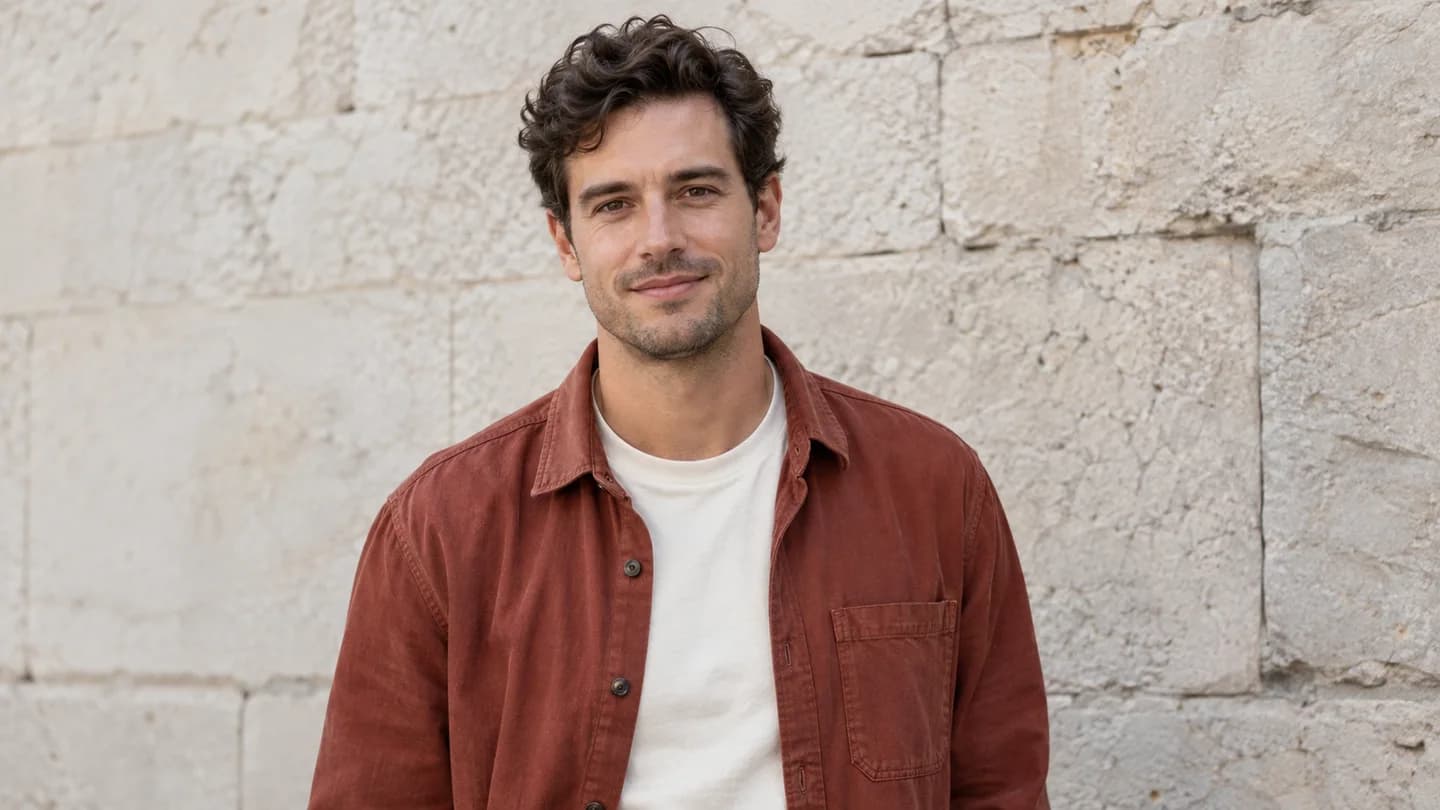
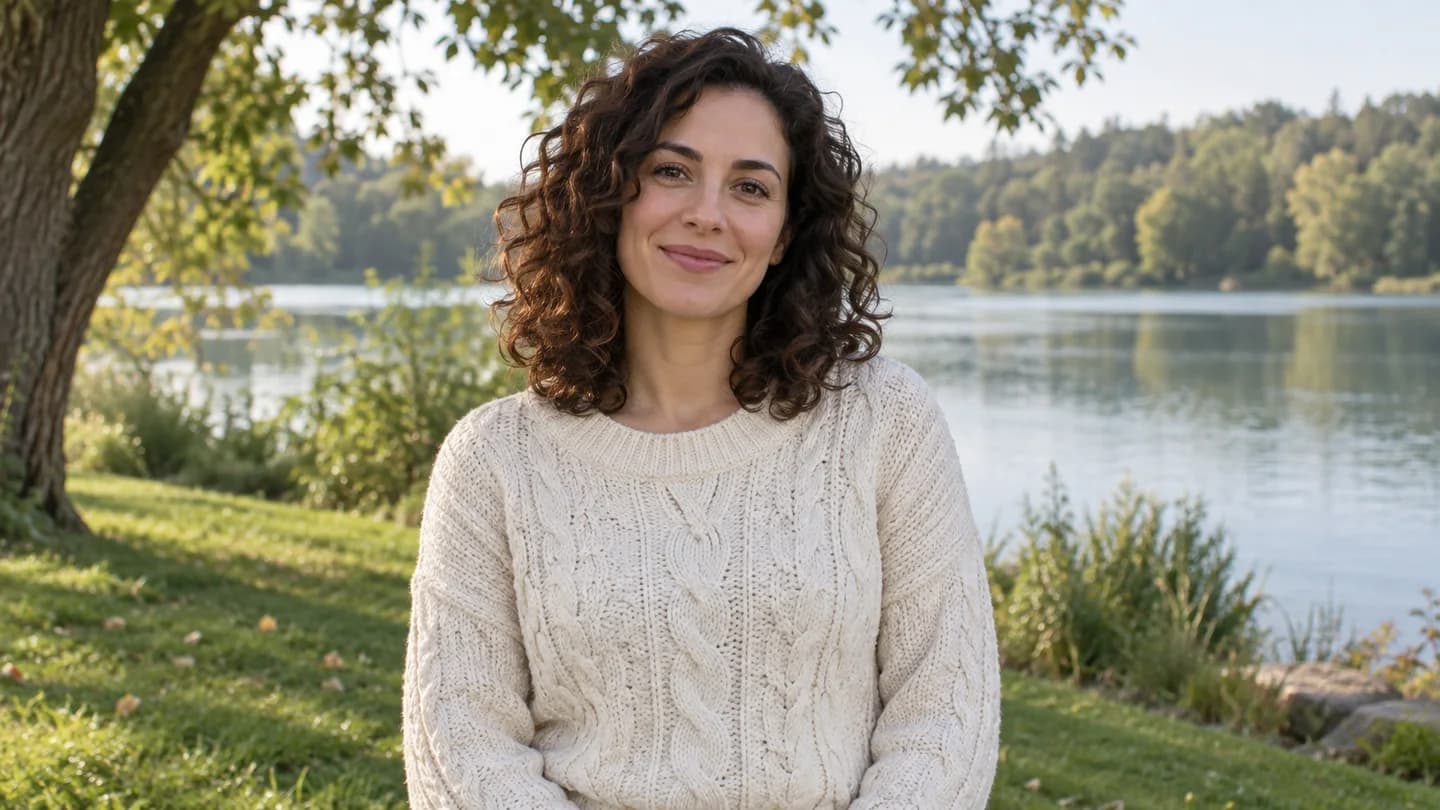
Bring Two People Together
Bring one person from each source photo into a shared scene.
Upload two photos to ImgtoImg’s AI image combiner and describe how you want to combine them. Bring people together in one photo or place a subject in a new setting.
See Input & Output ExamplesSource Images
Add two images. JPG, PNG or WebP, up to 10 MB each. References are resized to at most 2048 px and compressed before upload.
Image 1
Image 2
Use images you have permission to use. Read the Privacy Policy.
Explain what each image contributes, where the subjects belong, and what should stay unchanged.
Model
OpenAI · Flare · 3 credits per image
Aspect Ratio
Resolution
New accounts receive 6 free credits for 1K generation. Each output and follow-up edit uses credits.
View Credit PacksYour result will appear here
Compare it with your source images before keeping it. Faces, shapes, logos, and other details may change.
Examples
Explore six ways to combine two images. Select an example to view the source images and try a suggested prompt.
Bring one person from each source photo into a shared scene.
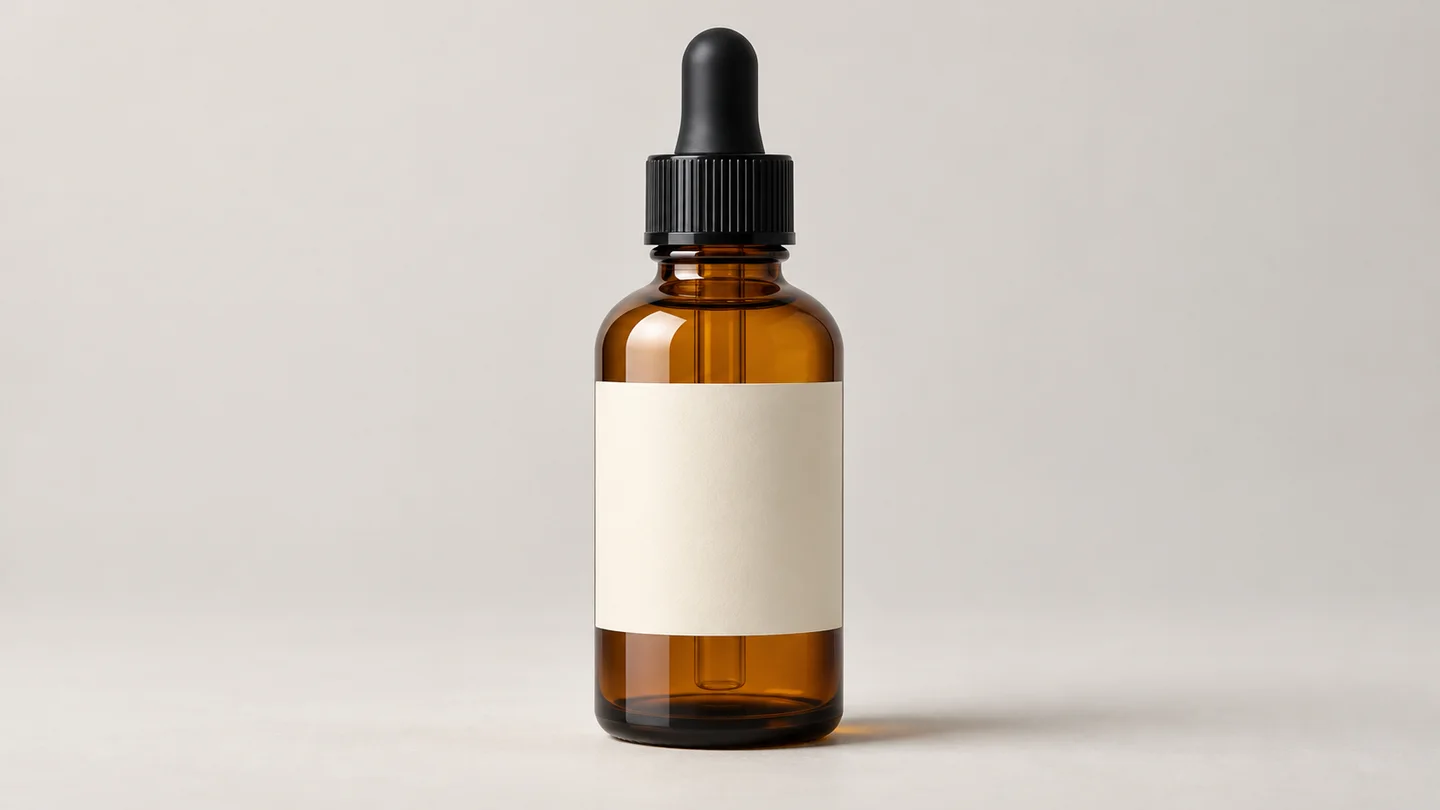
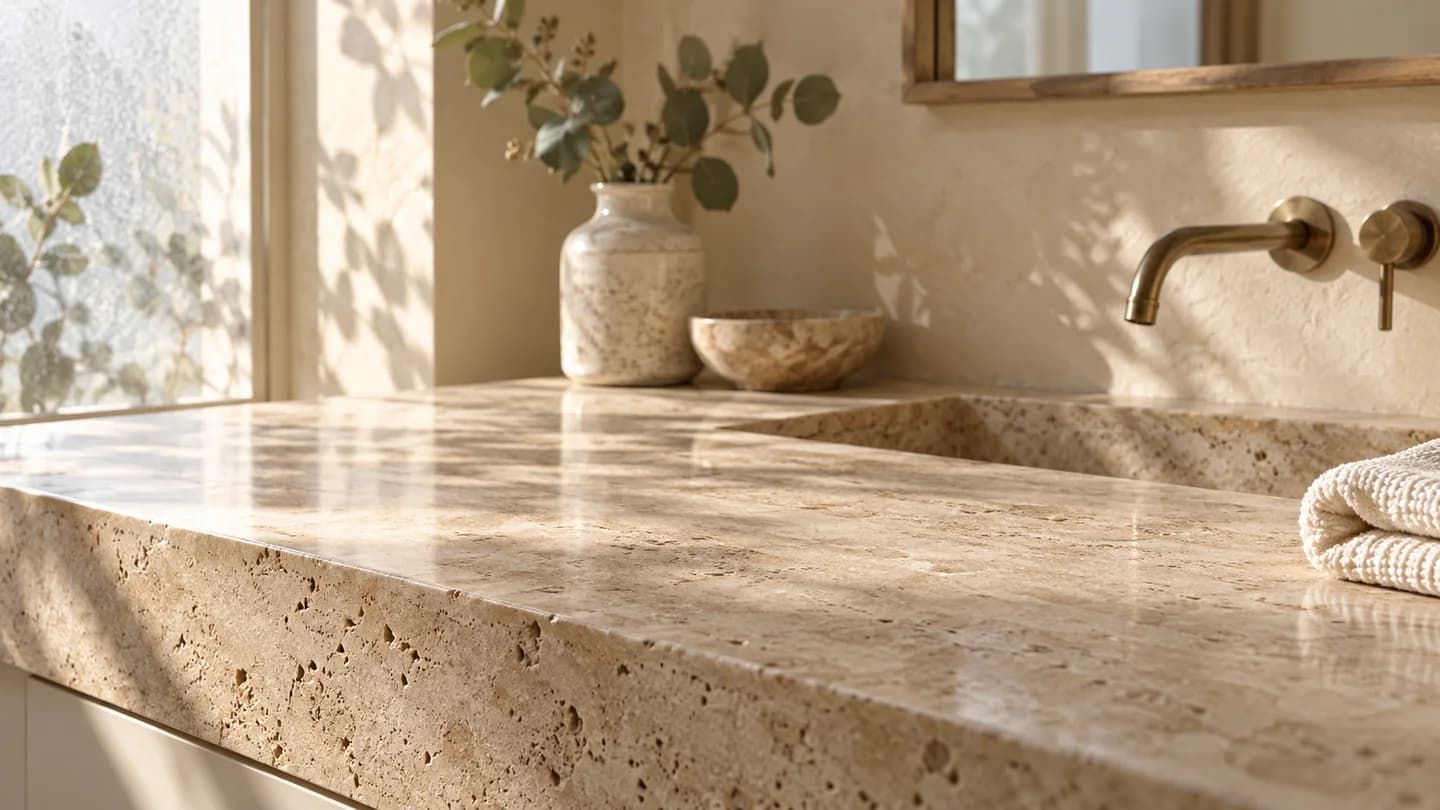
Use one image for the product and another for its setting.
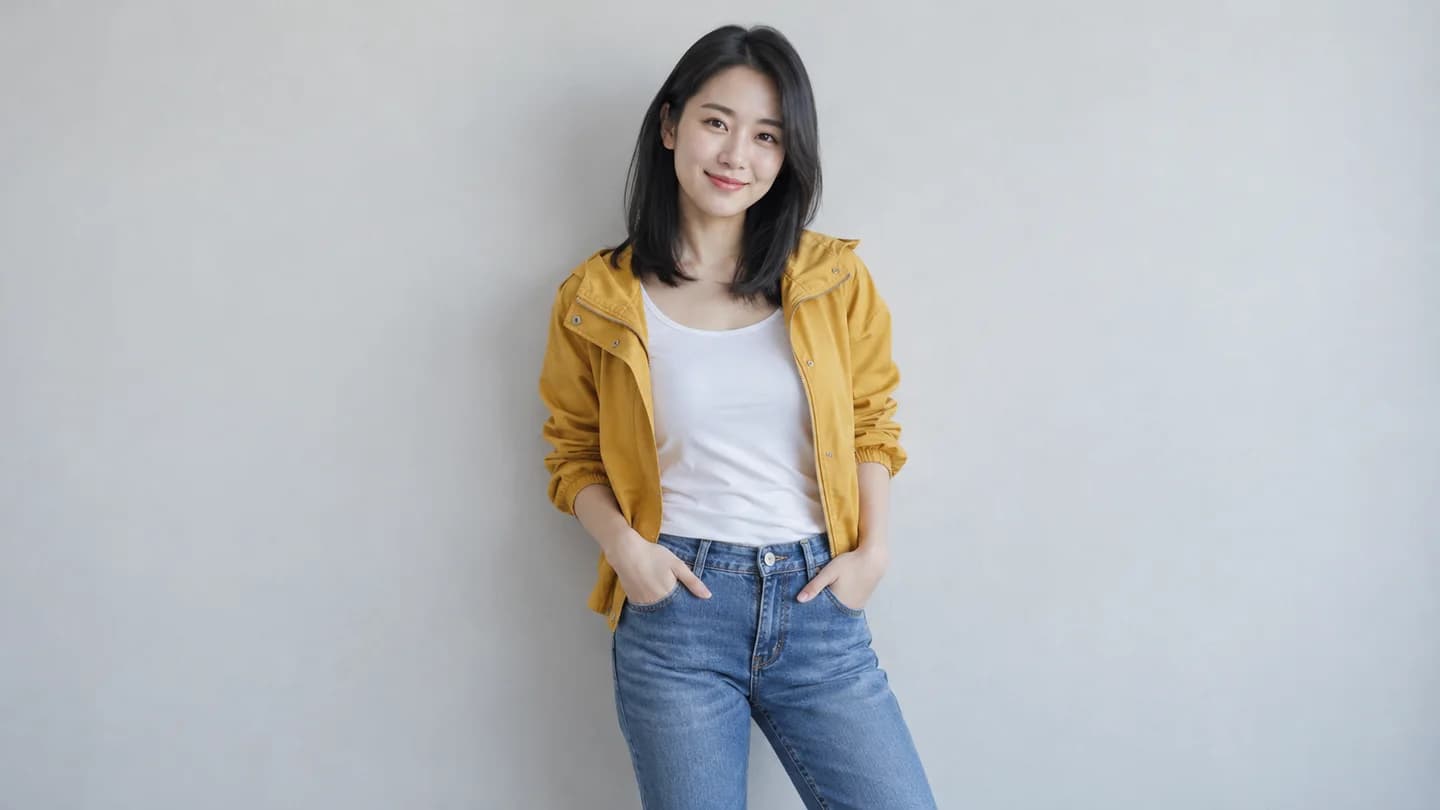
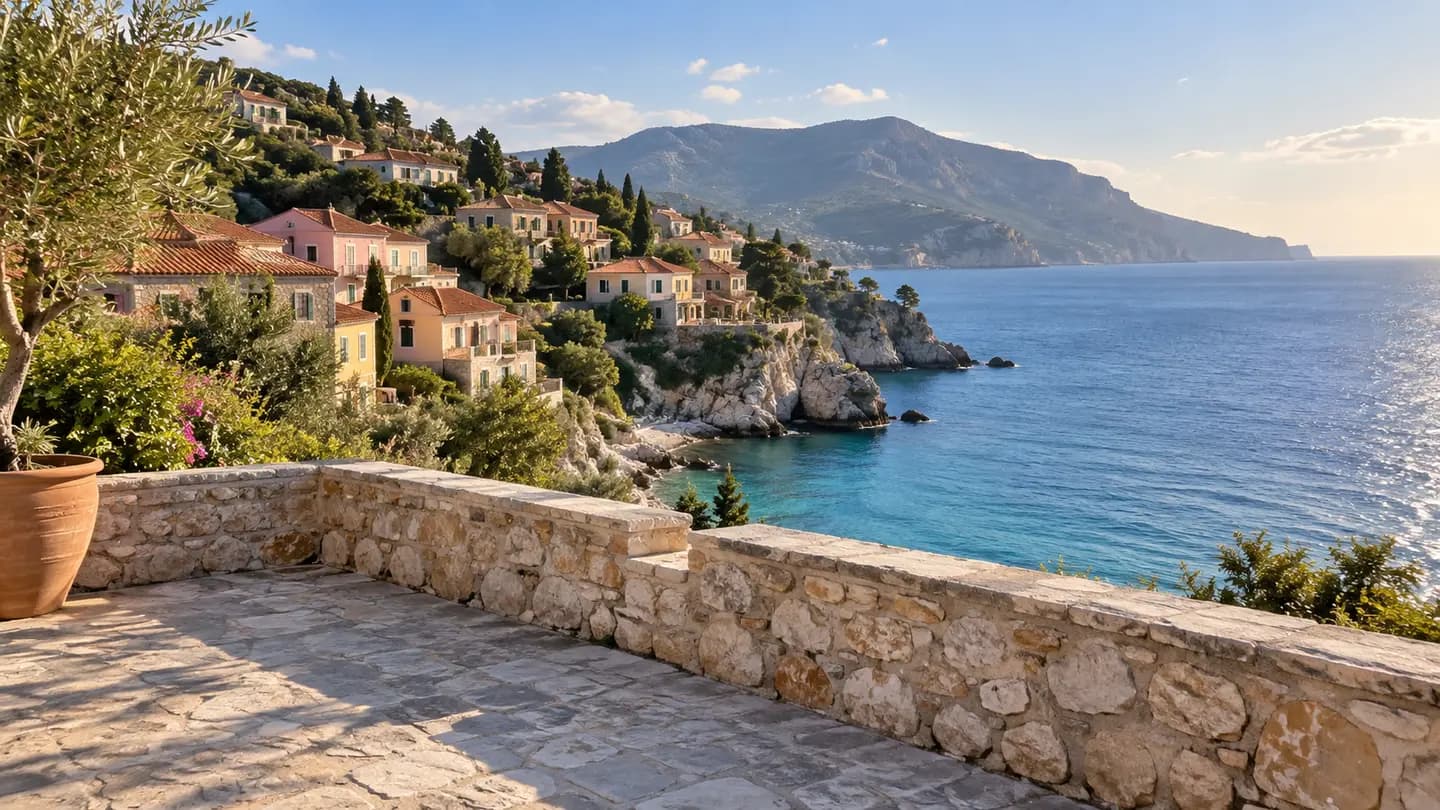
Place the person from one image in the location shown in another.
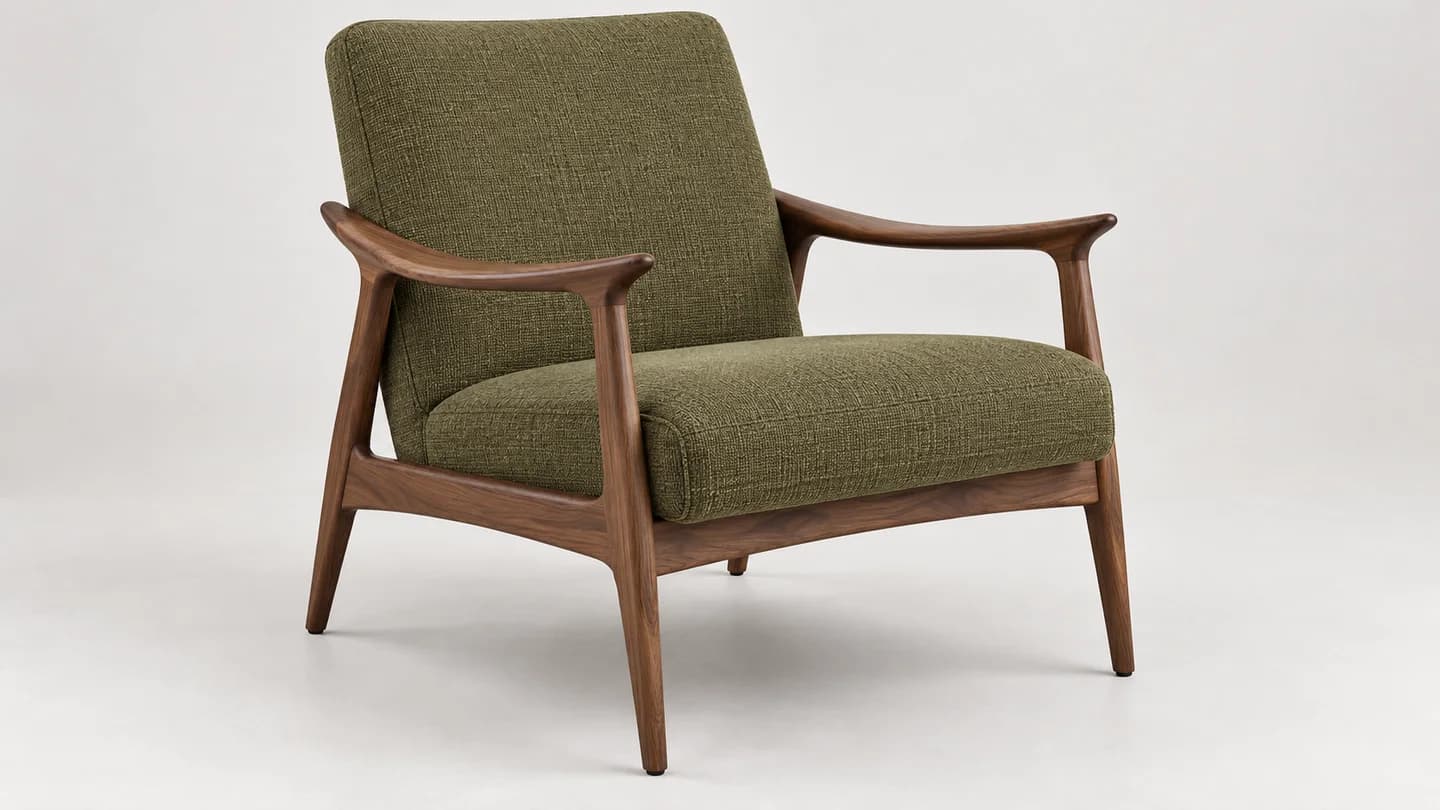
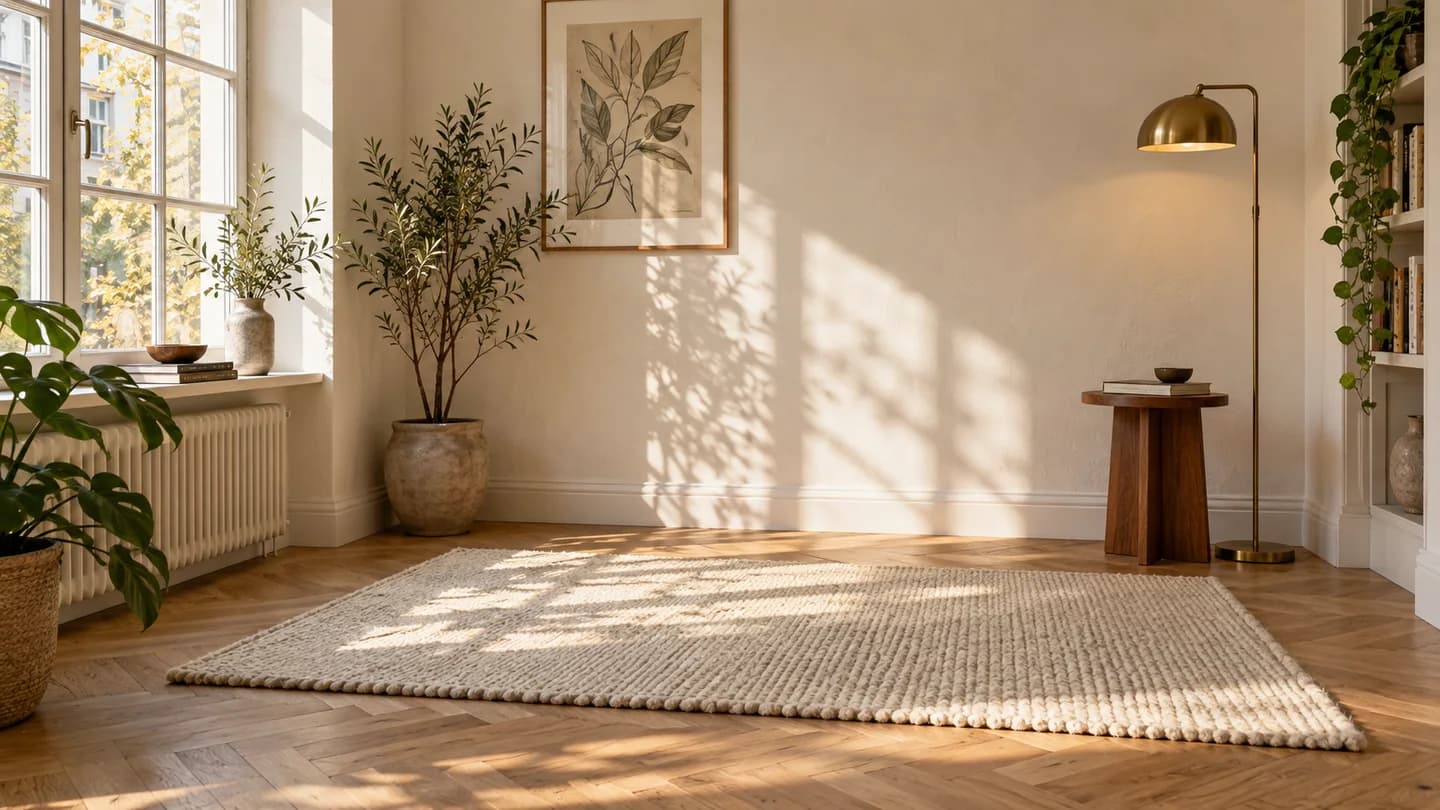
Pair a furniture photo with your room for a placement concept.
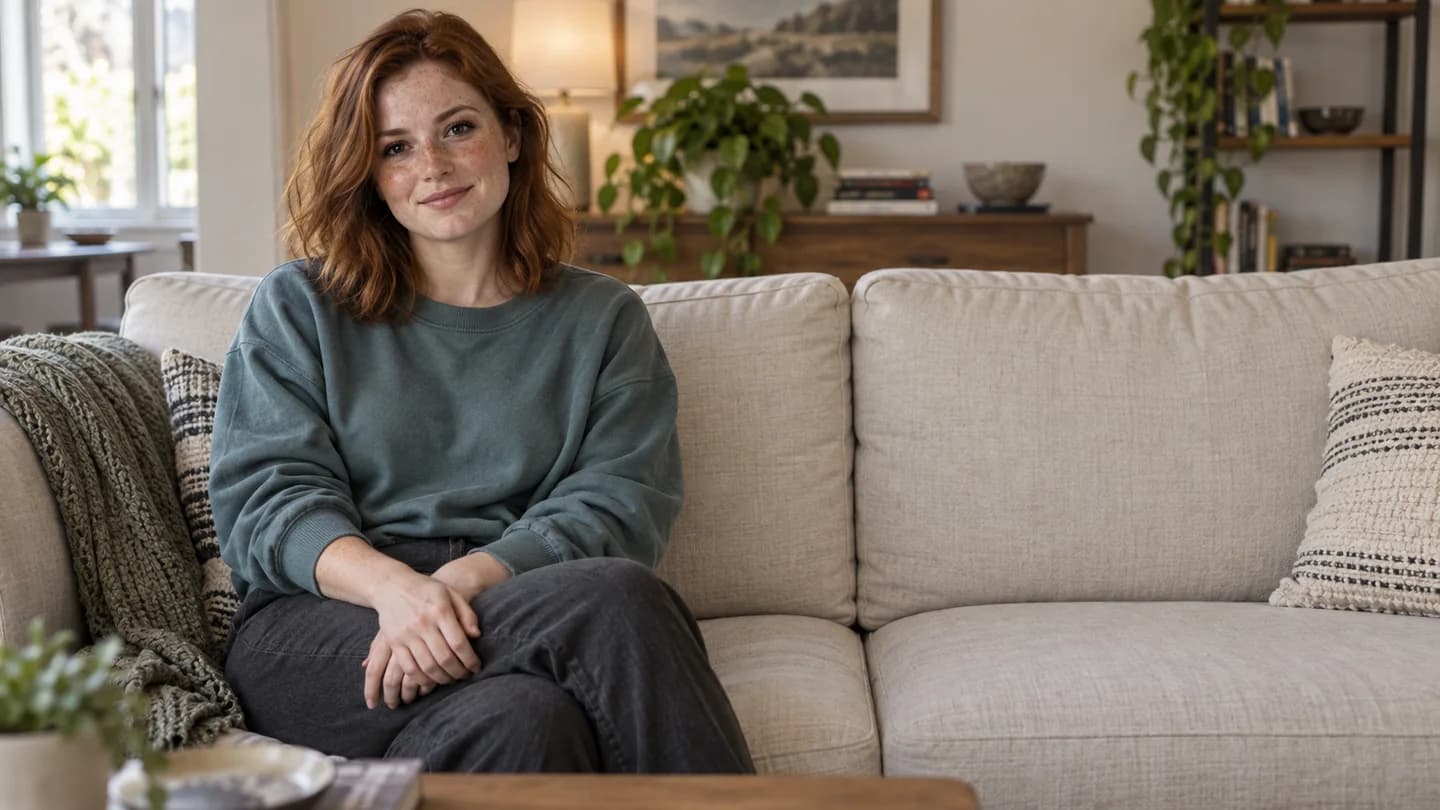
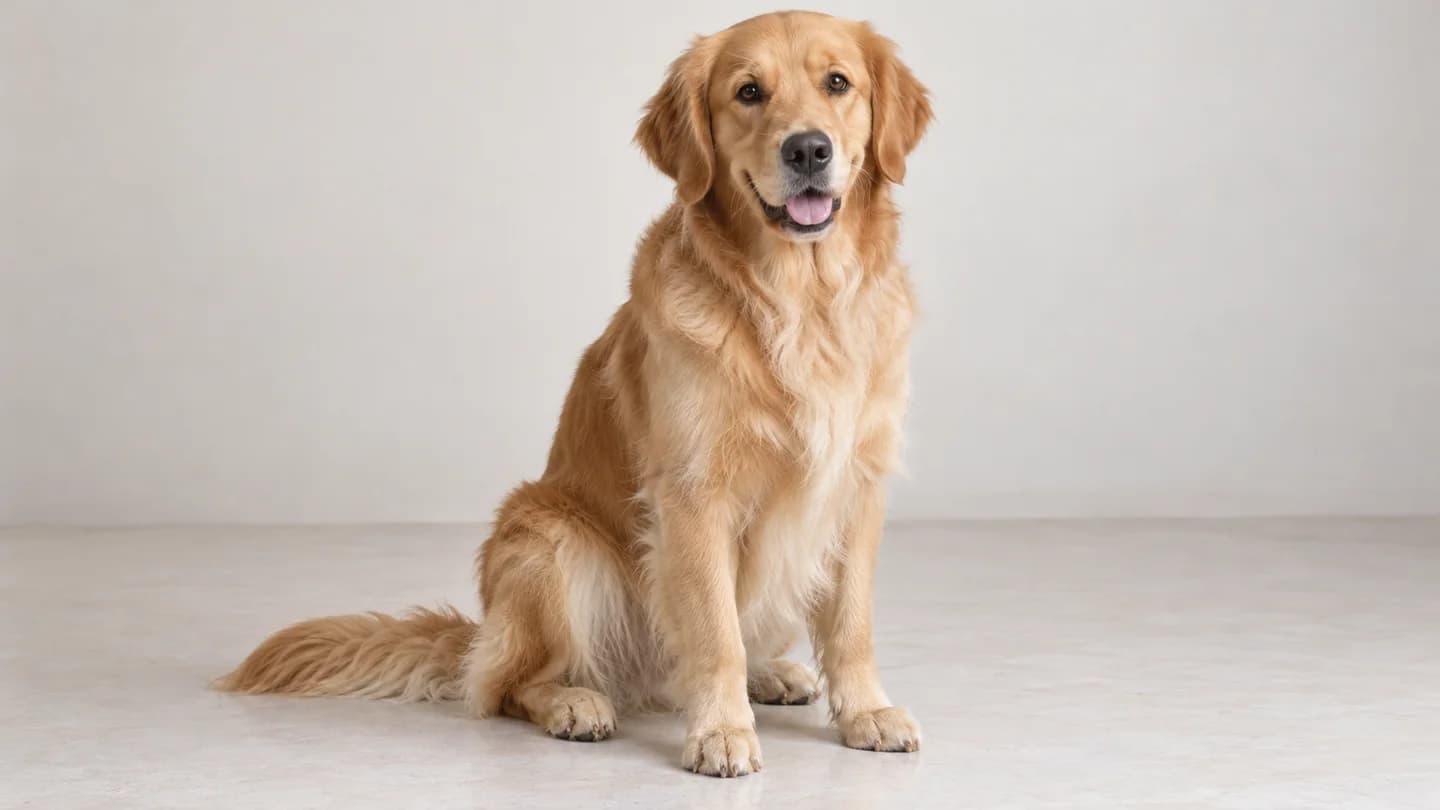
Bring the person and pet from separate photos into one portrait.
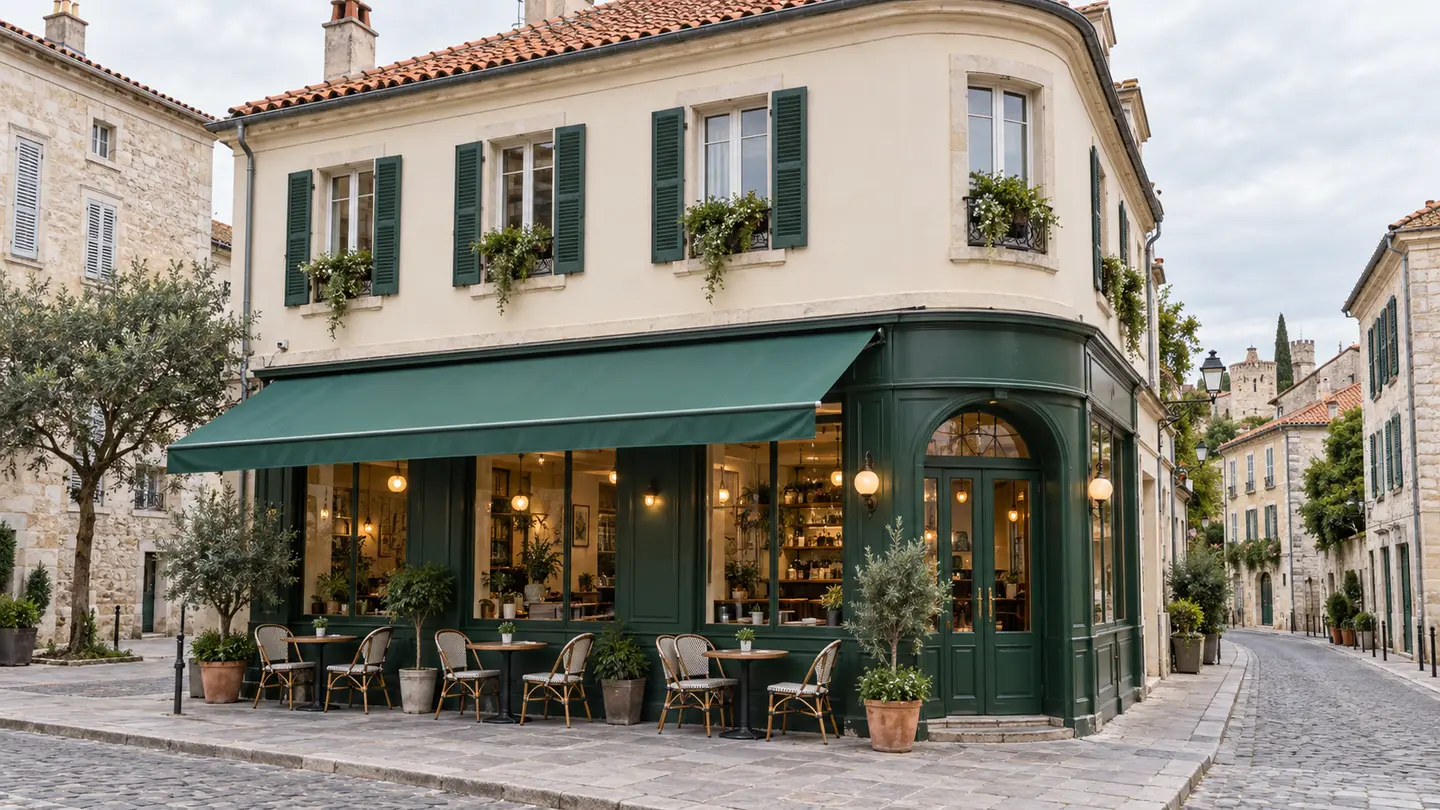
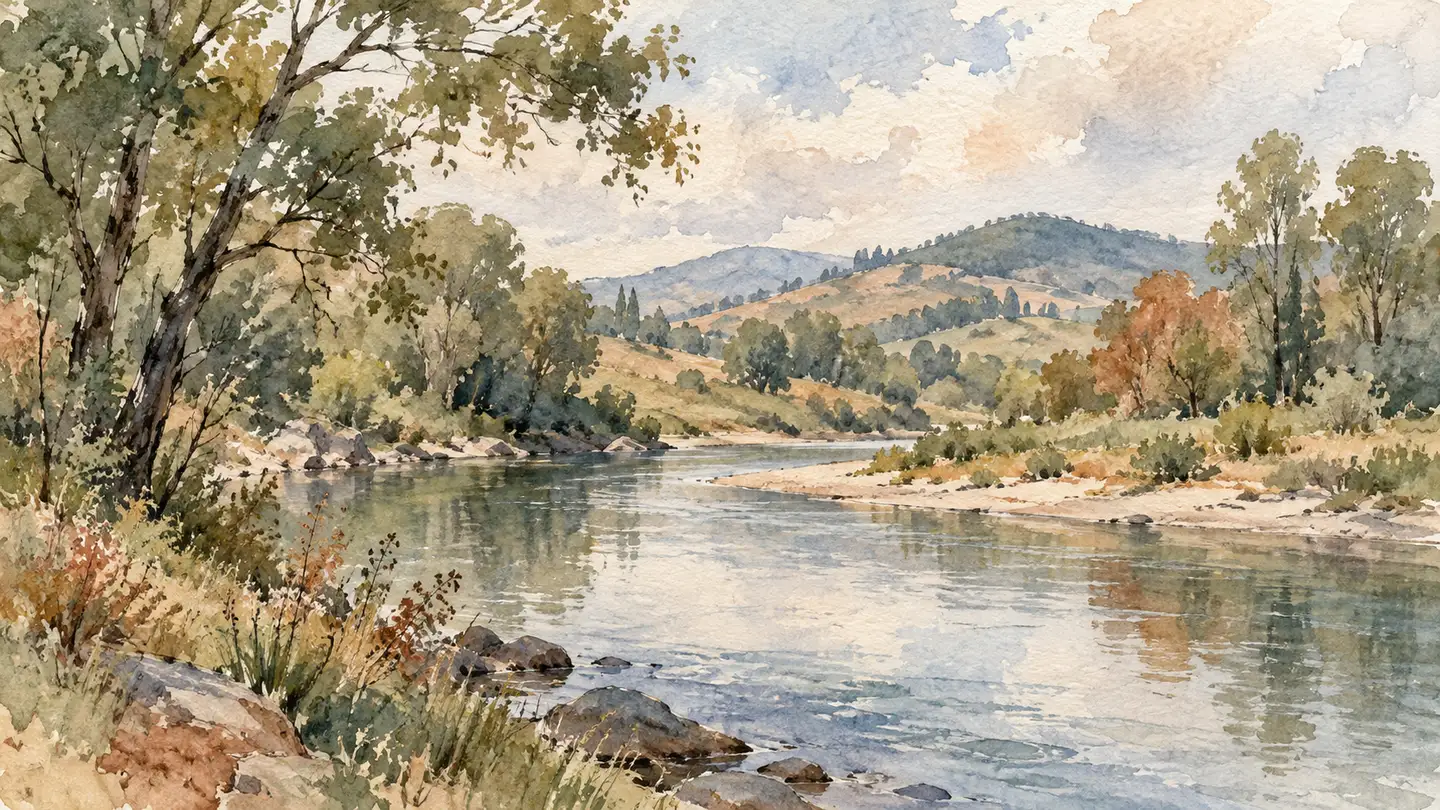
Keep the subject from one image and explore the style of another.
Why Choose ImgtoImg
ImgtoImg’s AI image combiner creates a new composition from two reference images and your prompt. Choose an image model, check the credit cost, and continue editing the result.
Tell the AI what each image contributes, where subjects belong, and which details should remain recognizable.
Open a generated image to request further changes. Area marks can guide an edit, but they do not lock the surrounding pixels.
Select GPT Image 2, GPT Image 2.5, or Nano Banana 2.1 in the same workspace. Each generation uses credits.
Check the credit cost for your model, resolution, and number of outputs. Follow-up edits are charged separately.
Sign in to generate. Each output and follow-up edit uses credits.
AI may change faces, labels, and object details. Use a compositing editor when the original pixels must remain unchanged.
How It Works
Upload two images, explain what each should contribute, & review the combined result.
Add two clear JPG, PNG, or WebP images, up to 10 MB each. Keep the subjects visible. For realistic scenes, choose sources with similar camera angles & lighting.
Explain what to use from each image and where it belongs. For example: “Place the person from Image 1 in the room from Image 2.” Choose your model, aspect ratio, resolution, & output count. Check the credit cost, then click Combine Images. Sign in if prompted.
Compare faces, text, object details, & shadows with your originals. For changes, select Open Result & Continue Editing; each follow-up edit uses credits. Download your result in PNG, JPG, or WebP.
Free preview downloads include a watermark. Original downloads require an upgrade.
Start Combining ImagesUse Cases
Use this AI photo combiner to bring people together, place products in new settings, or explore visual styles. For results that must preserve exact details, consider manual compositing.
Combine two individual portraits to explore a photo of people together. Describe their positions and the setting you want.
Faces and expressions may change. For a keepsake that requires an exact likeness, consider manual photo compositing.
Combine Your Images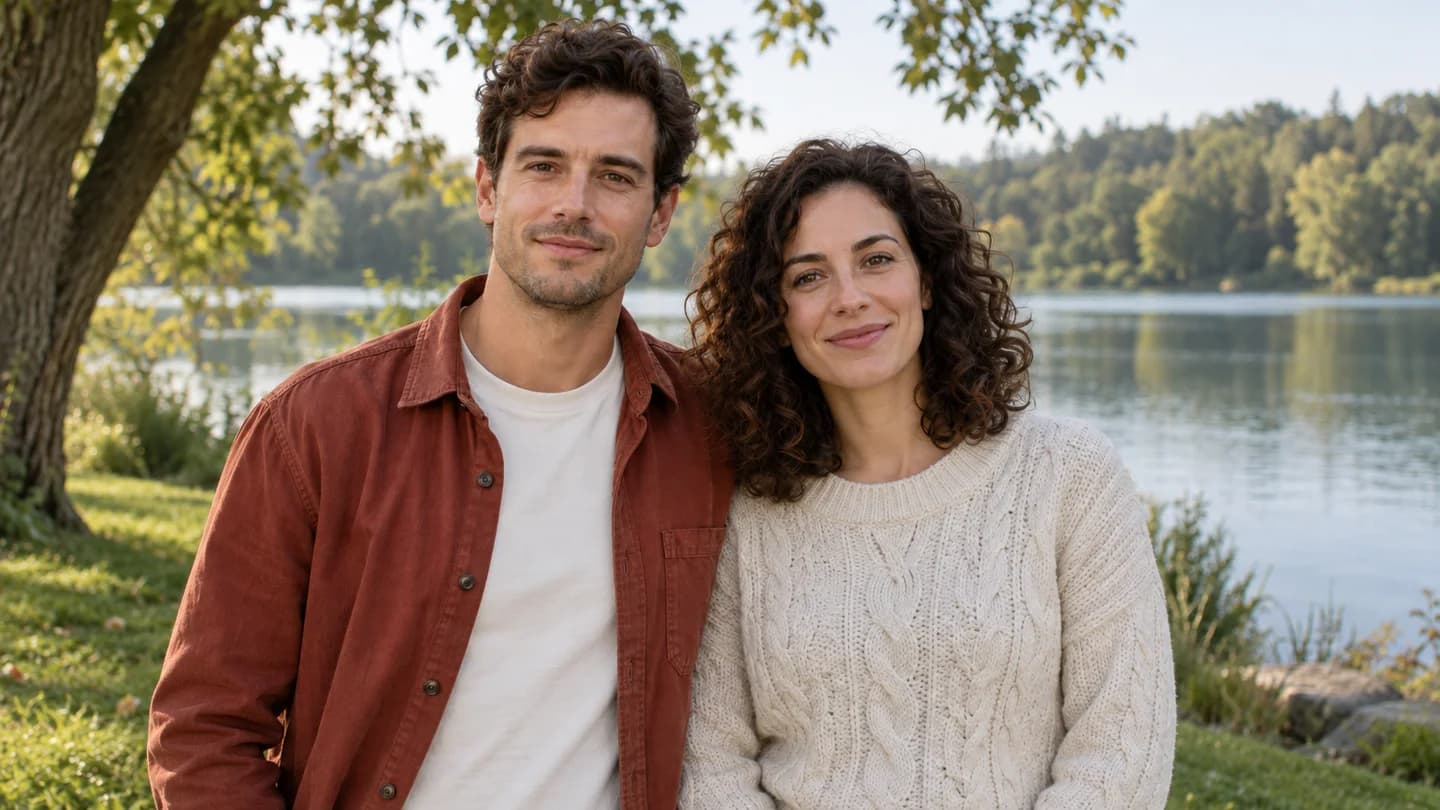
Two separate portraits brought into one scene.
Pair a product photo with a setting to develop a lifestyle image or marketing concept.
AI may change packaging, labels, or proportions. For a listing that must show the exact product, preserve the original product photo with a compositing editor.
Combine Your Images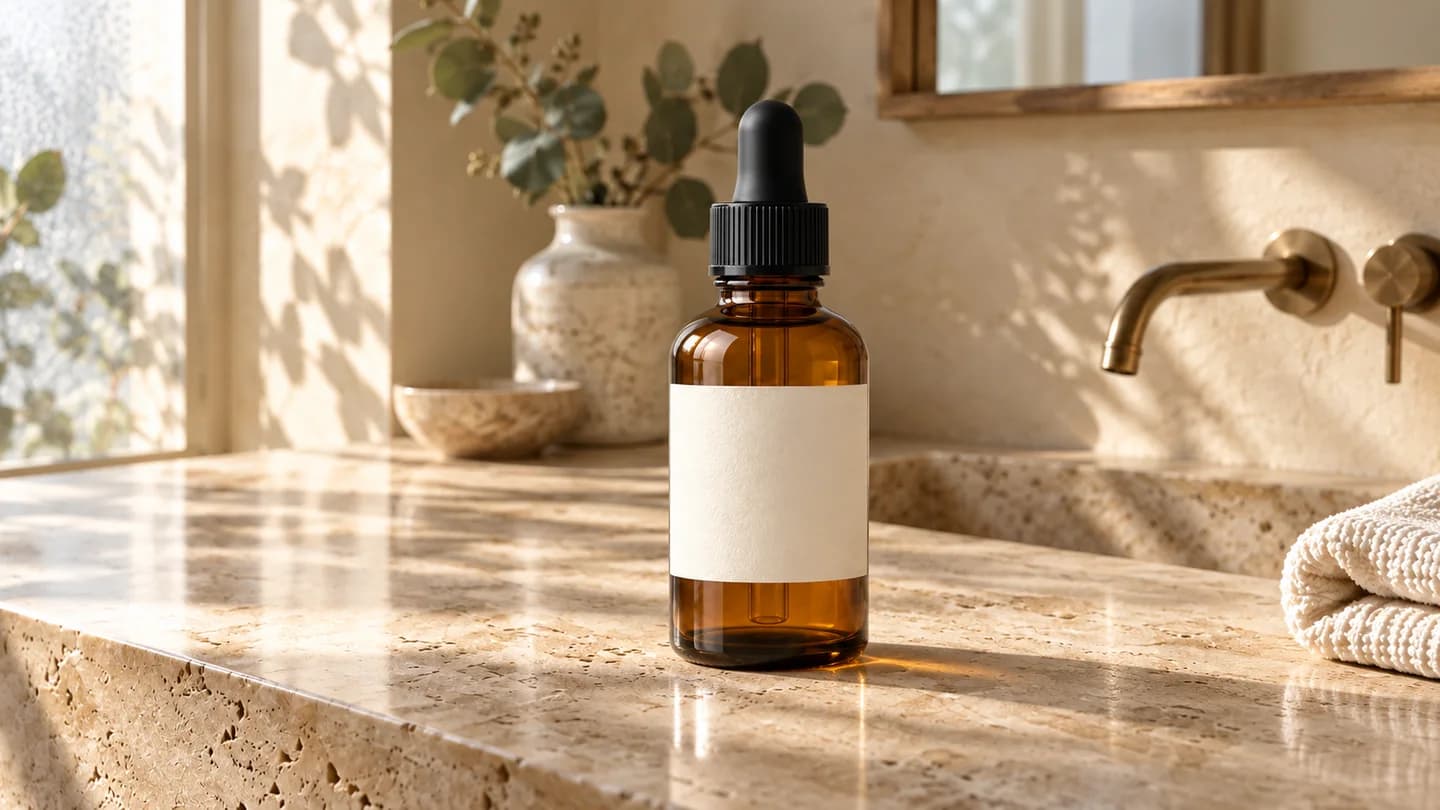
A bottle placed in a bathroom setting.
Use one image for the subject and another for the visual style to explore an illustration or creative concept.
This approach suits projects where some changes to the original details are acceptable.
Combine Your Images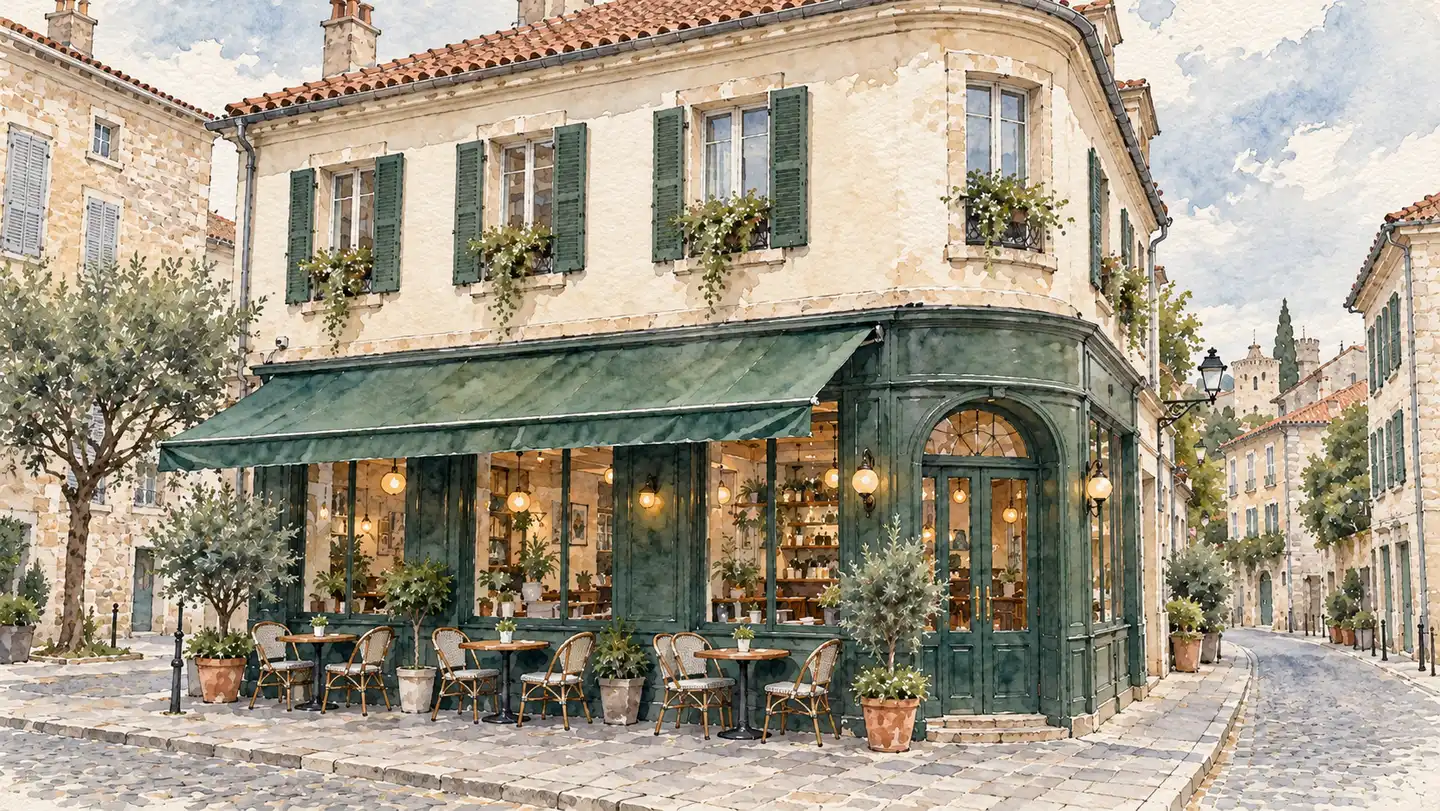
A cafe photo reimagined in a watercolor style.
For a grid or side-by-side layout, use a collage tool. To cut out a subject and keep its original pixels, use a compositing editor. AI combining generates a new image and may reinterpret either reference.
Only have one photo and want a new background? Learn how to change a photo background using a text prompt.
Pricing
Try 1K generation with 6 free sign-up credits. Buy a one-time credit pack when you need more—no subscription.
First project
110 credits
GPT at 2K · estimate
Lowest upfront cost
Sign in to continue
Included
Occasional use
440 credits
GPT at 2K · estimate
≈ 25% less / creditvs Starter
Sign in to continue
Included
More room to iterate
1,760 credits
GPT at 2K · estimate
≈ 56% less / creditvs Starter
Sign in to continue
Included
| Model | 1K | 2K | 4K |
|---|---|---|---|
| GPT Image 2 | 3 | 5 | 7 |
| GPT Image 2.5 | 3 | 5 | 7 |
| Nano Banana 2.1 | 2 | 3 | 4 |
Each output is charged separately. Follow-up edits & variations use credits for each new image. Every credit pack supports 1K, 2K & 4K.
Credits are restored for technical generation failures. For purchase refunds, see the Refund Policy.
Frequently Asked Questions
An AI image combiner generates a new image from your references and prompt. A collage maker places the original photos side by side or in a grid. Choose a collage maker when you want to arrange photos without changing their content.
Give each image a role: subject, setting, or style reference. Describe where the subject belongs, which details matter, and how the lighting and perspective should fit. These instructions guide the AI but do not guarantee unchanged details.
ImgtoImg currently accepts exactly two source images. The output-count setting controls how many results to generate, not how many source images you can upload. Upload JPG, PNG, or WebP files up to 10 MB each. Before upload, references are resized to at most 2048 pixels on the longest side and compressed. Initial generation can produce 1–4 outputs; each follow-up edit produces one image.
ImgtoImg does not provide separate reference-image weight sliders. Use your prompt to describe what to take from each image. This guides the combination but does not set an exact mixing ratio.
Exact preservation is not guaranteed. The AI may alter identifying features, product shapes, lettering, or small details. Compare the result with your originals before keeping or publishing it.
Identify the specific mismatch before making another request. Check whether your sources are clear and your instructions conflict. Ask for a focused correction, then review the entire new result. If exact preservation is essential, consider manual compositing instead of repeated generation.
Area marks guide an edit; they do not lock the surrounding pixels. Details outside the marked area may change. ImgtoImg’s area marking is available when editing a generated result.
New ImgtoImg accounts receive 6 free credits for 1K generation. Sign-in is required to generate, and each output uses credits. Free-account downloads include a watermark. Follow-up edits also use credits; paid packs provide more credits and access to higher resolutions.
ImgtoImg exports PNG, JPG, and WebP images. Free accounts can generate at 1K; paid packs support up to 4K and downloads without ImgtoImg’s preview watermark. PNG does not necessarily mean a transparent background. PSD, SVG, and editable layers are not available. Higher resolution does not guarantee accurate details, and generated images may contain other marks.
ImgtoImg sends reference images and prompts to an external image-generation service to process your request. Read the Privacy Policy for data-handling details. If you need specific assurances about confidential material, retention, deletion, or training use, contact us before uploading.
Read the Privacy PolicyImages generated while your account has valid paid access may be used commercially, including those made using reward credits during that paid access. A later purchase does not automatically authorize earlier free-account images. The Terms define eligibility. This does not grant rights to someone else’s photos, trademarks, likenesses, or other protected material.
Read the TermsCheck the generation status before submitting another request. For a saved result, reload it or reopen it from My Work. Reloading a saved image does not use generation credits; generating a new image does. Technical generation failures trigger credit restoration. Contact support with the generation ID and error message if the issue continues.
Contact SupportStart Creating
Choose your sources, explain their roles, and check the result against the originals. Keep the version that meets your needs, or make a focused adjustment.
Check the credit cost before generating. Review faces, product details, and text before downloading or publishing.
Want to check the cost first?
View Credit PacksHave a question about your task?
Contact Support